
Laundry Lockers
Using Lockers with Wash-Dry-Fold POS and MyLaundryOrder
Overview
The locker feature allows customers to drop off and pick up laundry using physical lockers at your store. Instead of handing laundry directly to staff or scheduling a home pickup, customers select a locker through MyLaundryOrder.com, place their laundry inside, and submit their order online. Staff then retrieves the laundry, creates the order in WDF POS, processes it, and returns the finished laundry to a locker for customer pickup.
This gives stores a convenient way to offer self-serve drop-off and pickup, reduce counter traffic, and support customers who need more flexible pickup times.
Setting Up Lockers in WDF POS
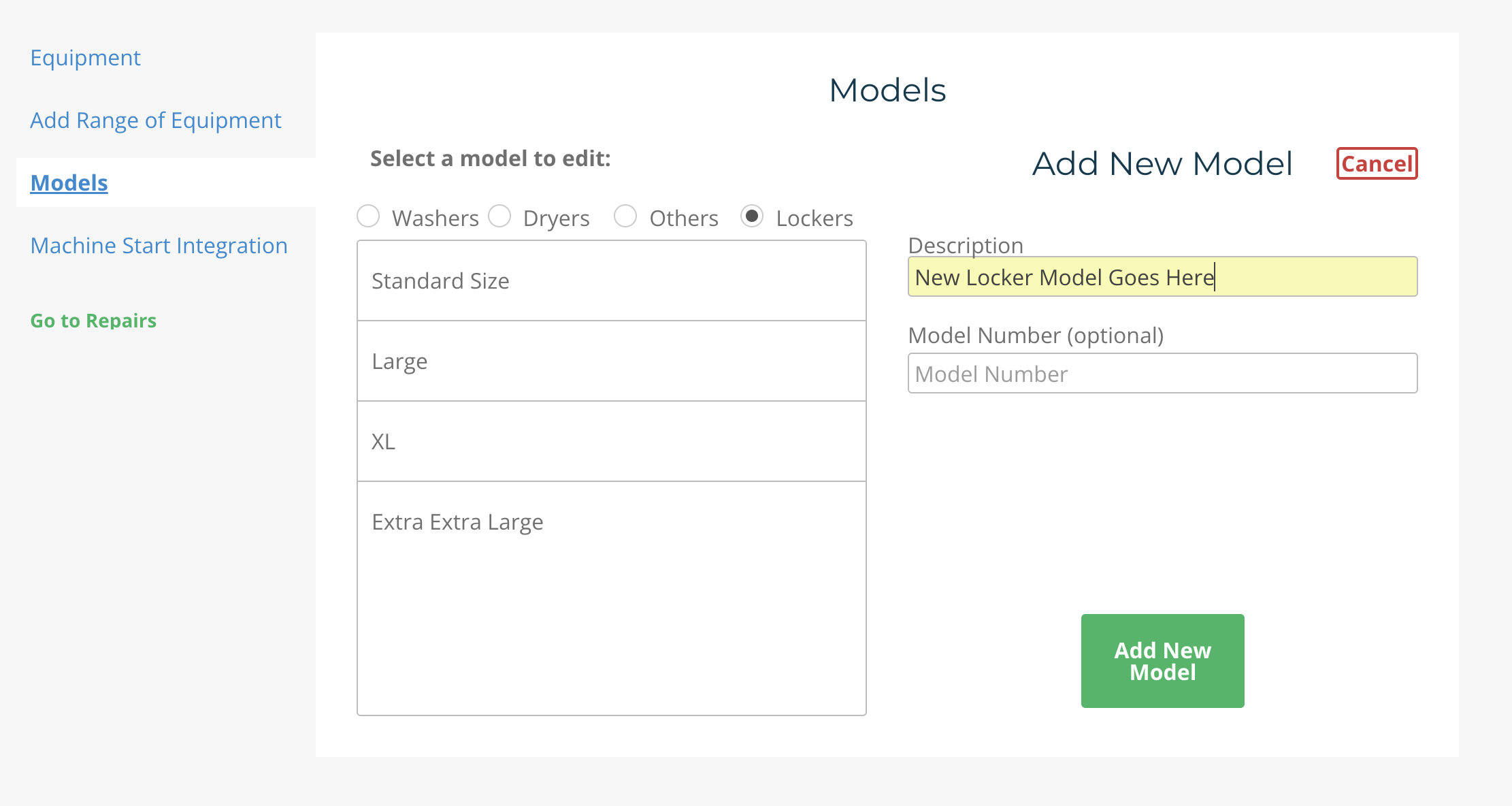
To add locker models:
- Click the Gear icon in the top right corner and go to Manage Equipment
- Click Models
- Click on the Lockers option for equipment models
- Add a description for the locker model and then click Add New Model
To add lockers:
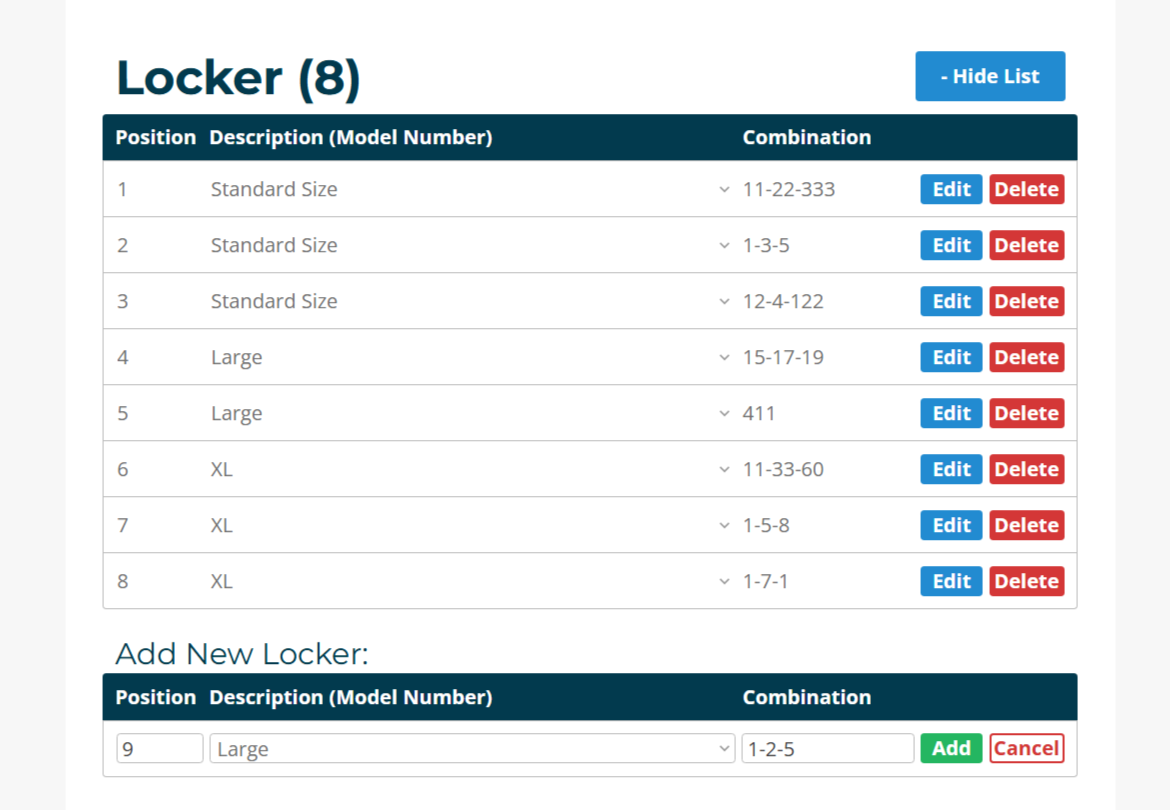
- Click the Gear icon in the top right corner and go to Manage Equipment
- Locate the Locker section of the Equipment tab
- Enter:
- Position (Locker number)
- Description (Select a locker model you created in the Models tab)
- Combination (Locker access code; this can be changed later or left blank for now)
- Click Add
Repeat this process for each locker in your store.
Enabling Lockers in MyLaundryOrder (optional)
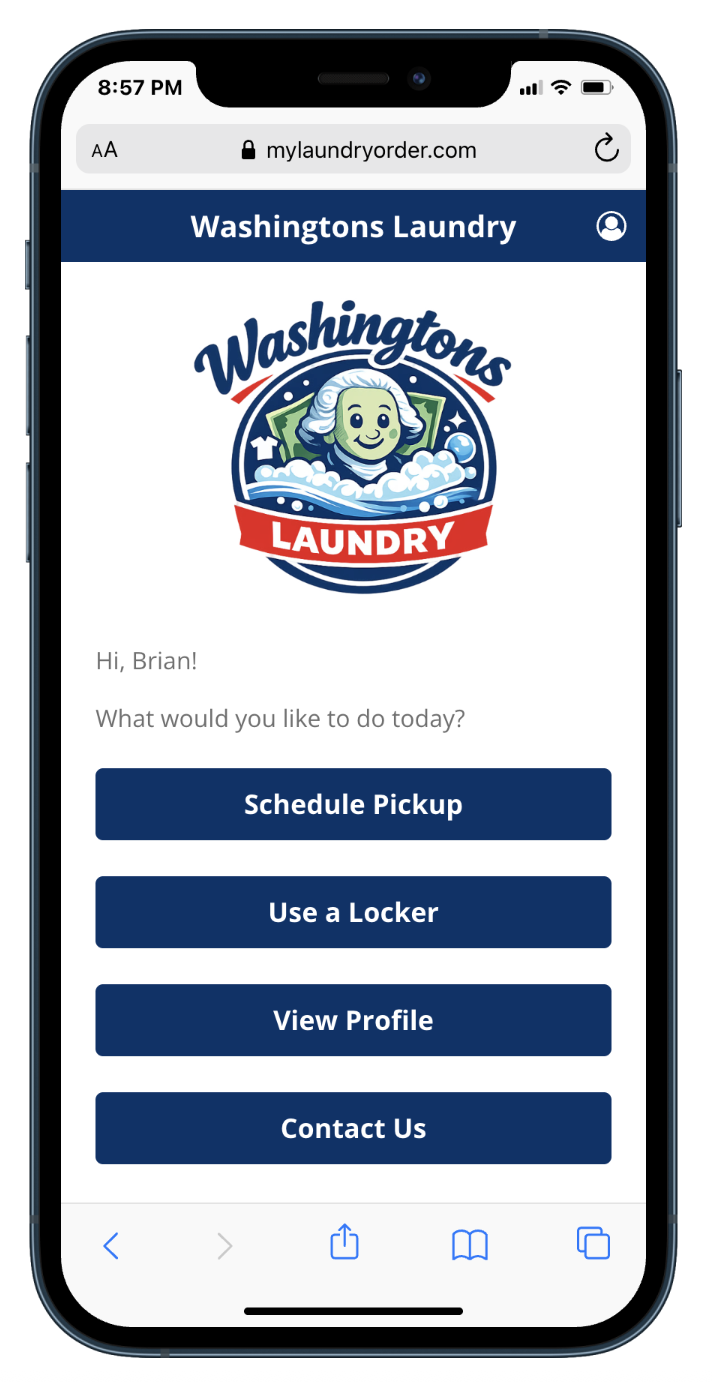
If you have already enabled the online delivery scheduling portal for your customers for your store then you can add "Use a Locker" to their available options. This way they can share their payment info, contact details, and laundry preferences in a secure manner which will appear directly in your Wash-Dry-Fold POS software.
To allow customers to use lockers through MyLaundryOrder (MLO):
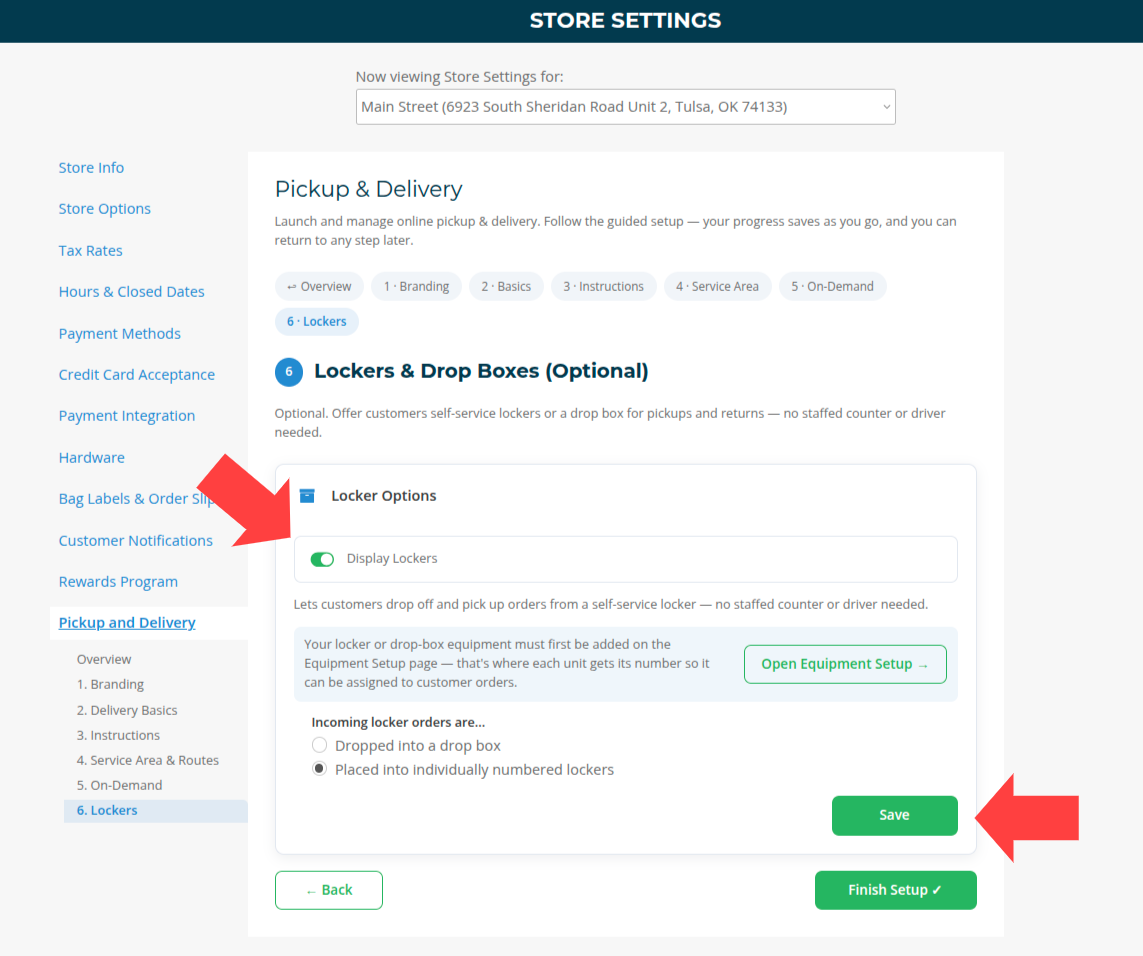
- Go to Store Settings
- Select the Lockers tab of the Pickup and Delivery section
- Click Set Up Lockers
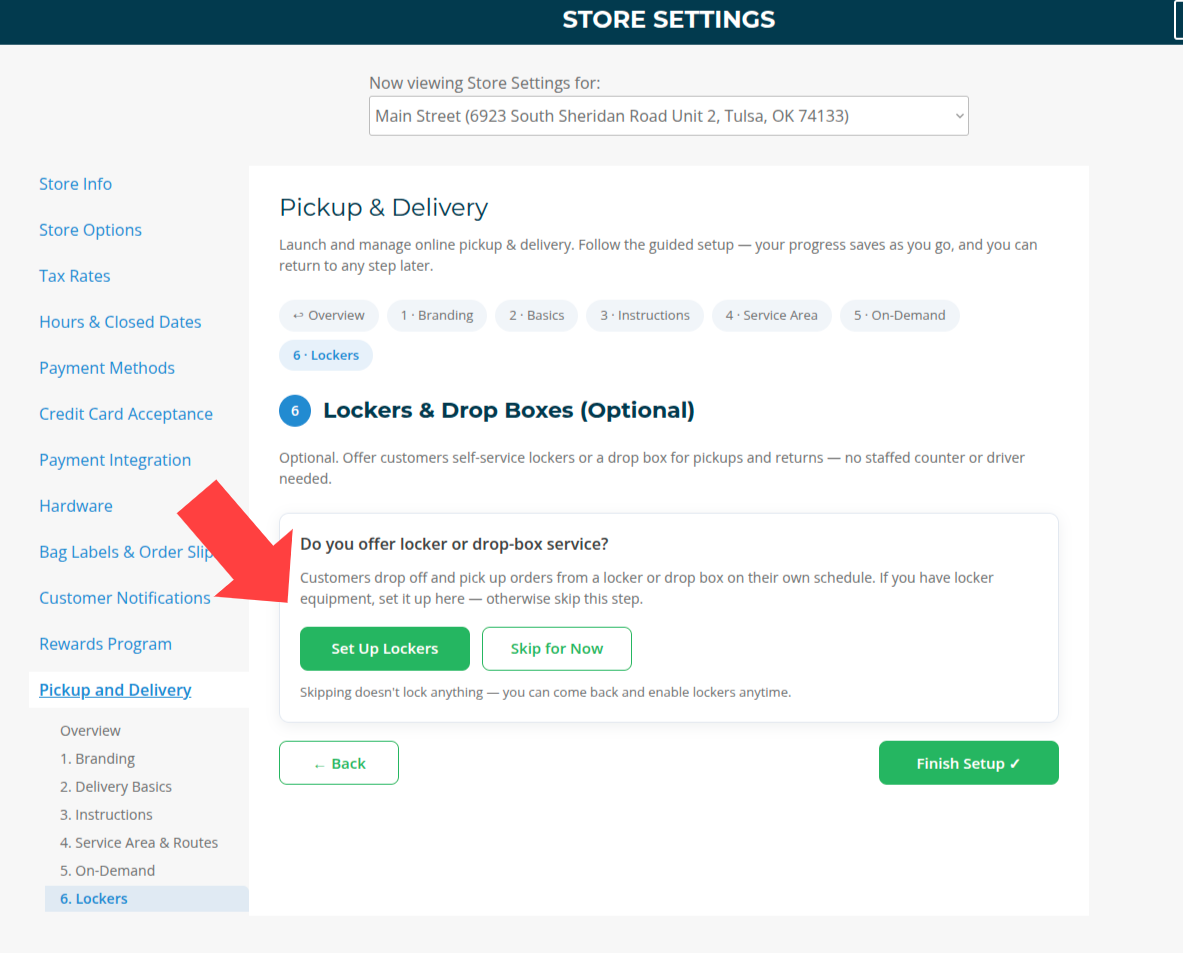
- Click Display Lockers then Save
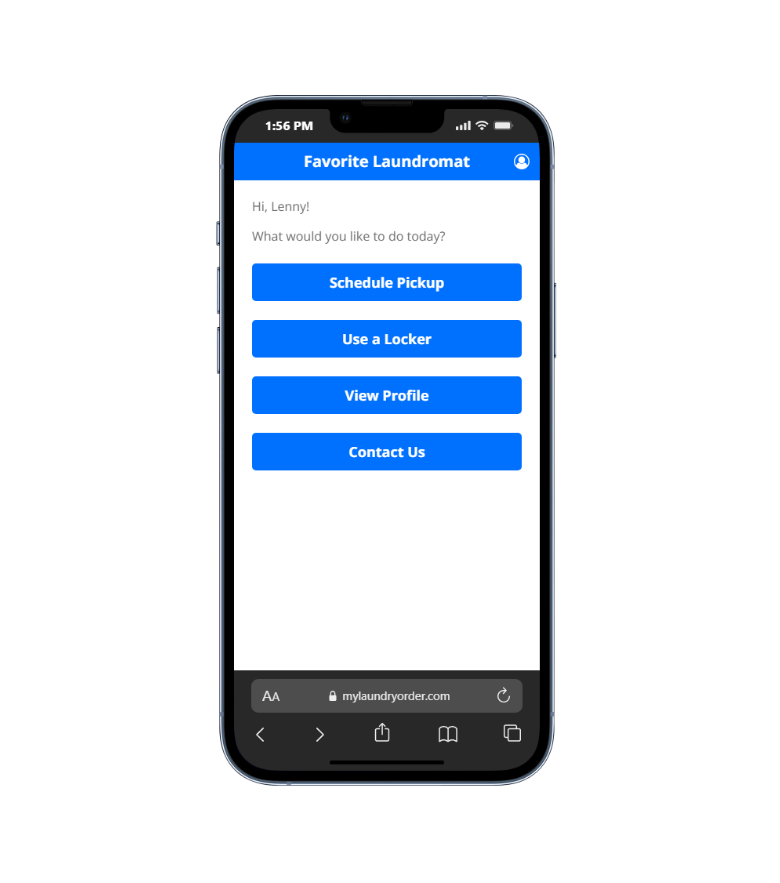
Once enabled, customers will see the Use a Locker button in MLO.
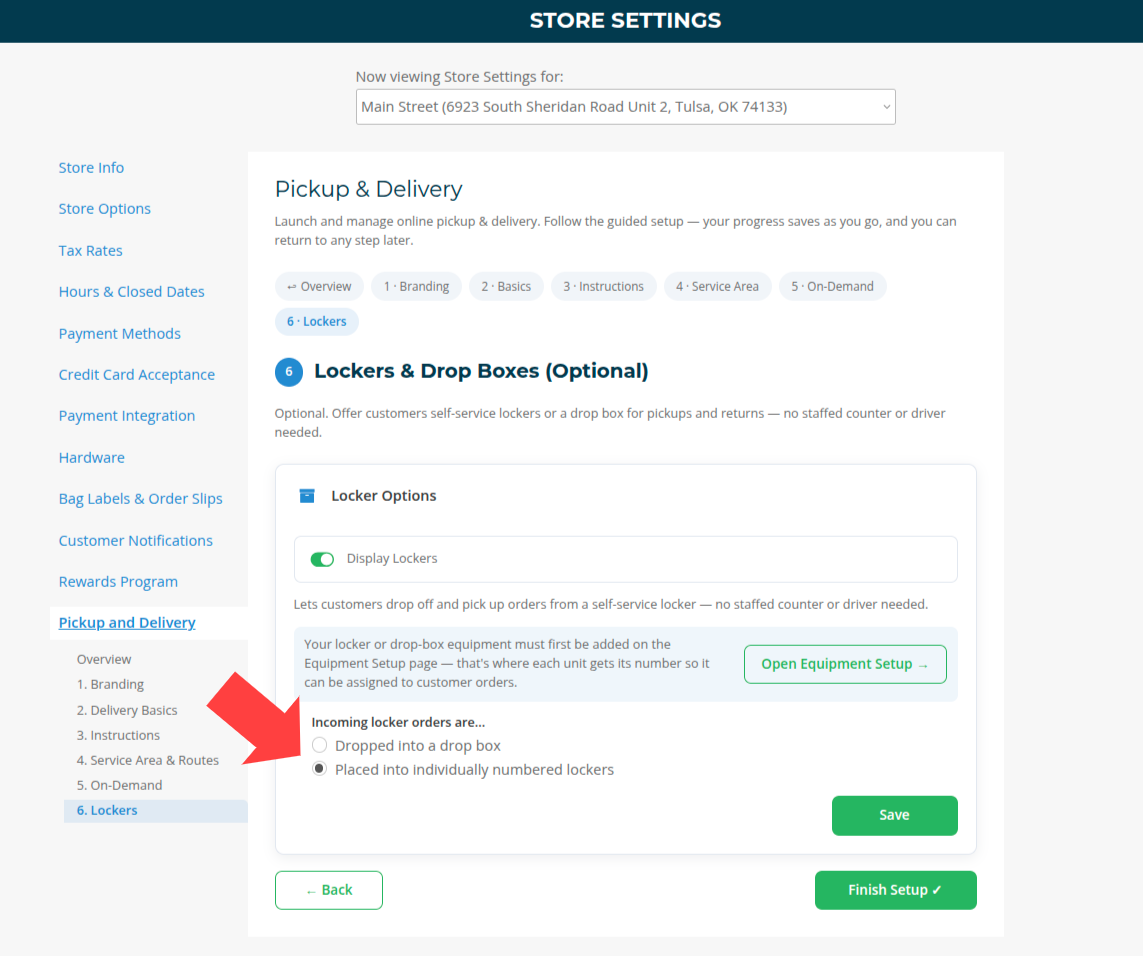
Choosing Locker vs Drop Box Workflow
In the same section, you can choose how incoming locker orders are handled:
Option 1: Individually Numbered Lockers
- Customers select a specific locker
- Orders are tied to that locker
- Best for stores with multiple lockers
Option 2: Dropbox
- Customers drop off in a shared dropbox
- No specific locker is assigned at drop-off
How to Select Your Setup
- Choose Lockers if customers will place items directly into assigned lockers
- Choose Drop Box if you want a simpler drop-off process with staff handling locker assignment later
Important Note
If lockers are not enabled:
- Customers will not see the locker option in MLO
- Locker orders will not be created
- The locker workflow will not function
How the Locker Workflow Works
The full locker workflow connects MyLaundryOrder.com and WDF POS:
- The customer goes to MyLaundryOrder.com and chooses Use a Locker.
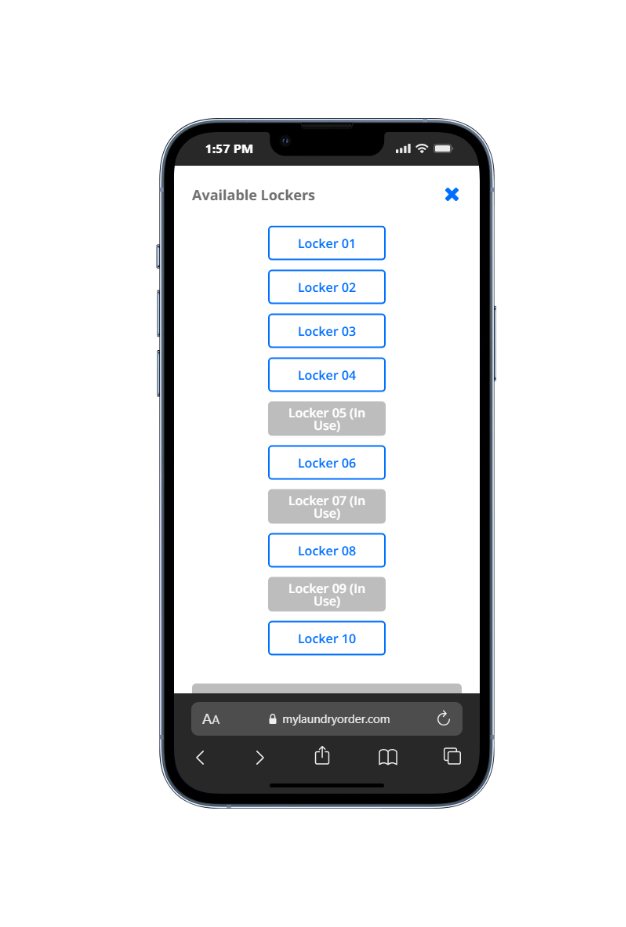
- The customer selects an available locker, enters order details, adds payment information, and submits the request.
- A locker pickup record is created in WDF POS.
- Staff retrieves the laundry from the locker.
- Staff creates an order from the locker pickup in WDF POS.
- The order is processed like a normal wash-dry-fold order.
- When finished, staff places the clean laundry back in the locker.
- The customer picks up the laundry and confirms the locker has been cleared.
- The locker becomes available for another customer.
Think of the locker as the physical handoff point between the customer and the store.
Customer Experience on MyLaundryOrder.com
Placing a Locker Order
Customers start by visiting MyLaundryOrder.com through the link on your laundromats website and choosing Use a Locker.
The customer will complete a short order form that may include:
- Number of laundry bags
- Locker selection
- Laundry preferences or special instructions
- Payment method
- Optional tip
- Final review and submission
After submitting, the customer sees a confirmation message.
Dropping Off Laundry
After the order is submitted, the customer brings their laundry to the store and places it in the locker they selected.
Customers should be reminded to:
- Use the correct locker number
- Label their bags with their name
- Place all items fully inside the locker
- Close and secure the locker
- Avoid leaving items outside the locker
Checking Order Status
Customers can log into MyLaundryOrder.com to view their locker order status. Automatic notifications may not always be sent, so customers should check their account or contact the store if they are unsure whether an order is ready.
Picking Up Laundry
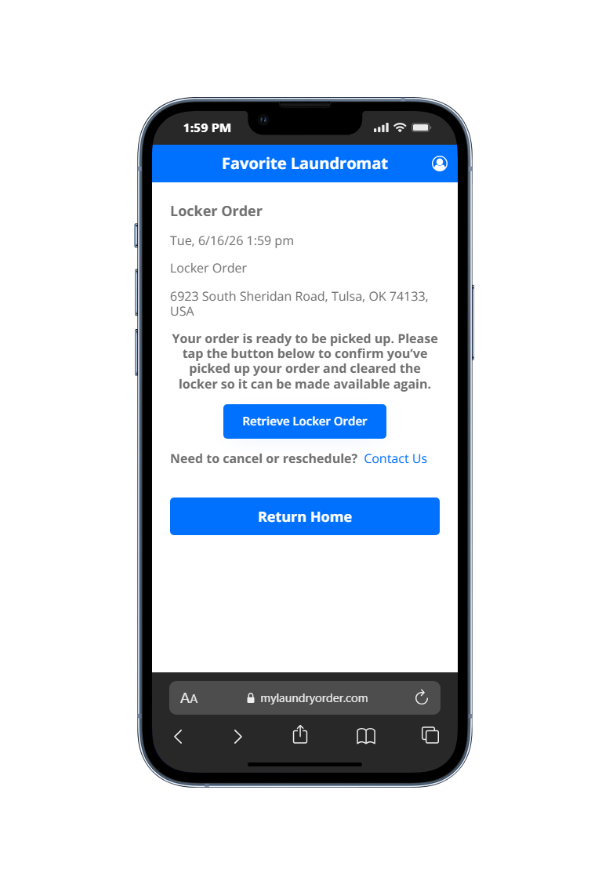
When the order is ready, the customer returns to the locker location, retrieves their laundry, and selects Retrieve Locker Order in MyLaundryOrder.com.
This step is important because it confirms the locker has been emptied and allows the system to mark that locker as available again.
Staff Experience in WDF POS
Where Locker Orders Appear
Locker pickups appear on the Lockers page in WDF POS. The main sections are:
- To-Do
- Done
- All Lockers
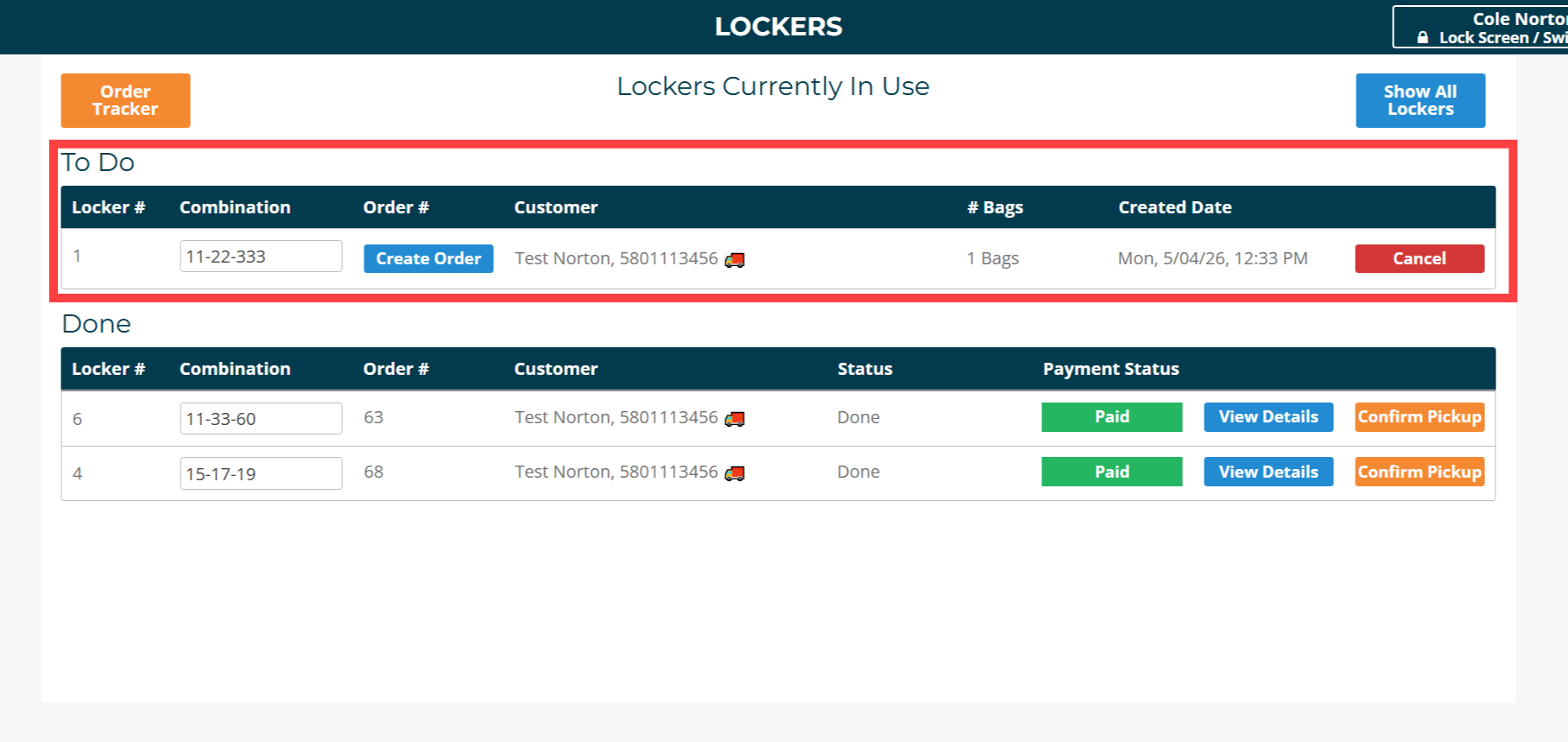
To-Do Section
The To-Do section shows locker pickups that still need to be turned into orders.
Staff should use this tab to:
- See which customers have locker pickups
- View the assigned locker number
- Retrieve laundry from the locker
- Create the customer’s order
Once the order is created, the pickup moves out of the To-Do tab.
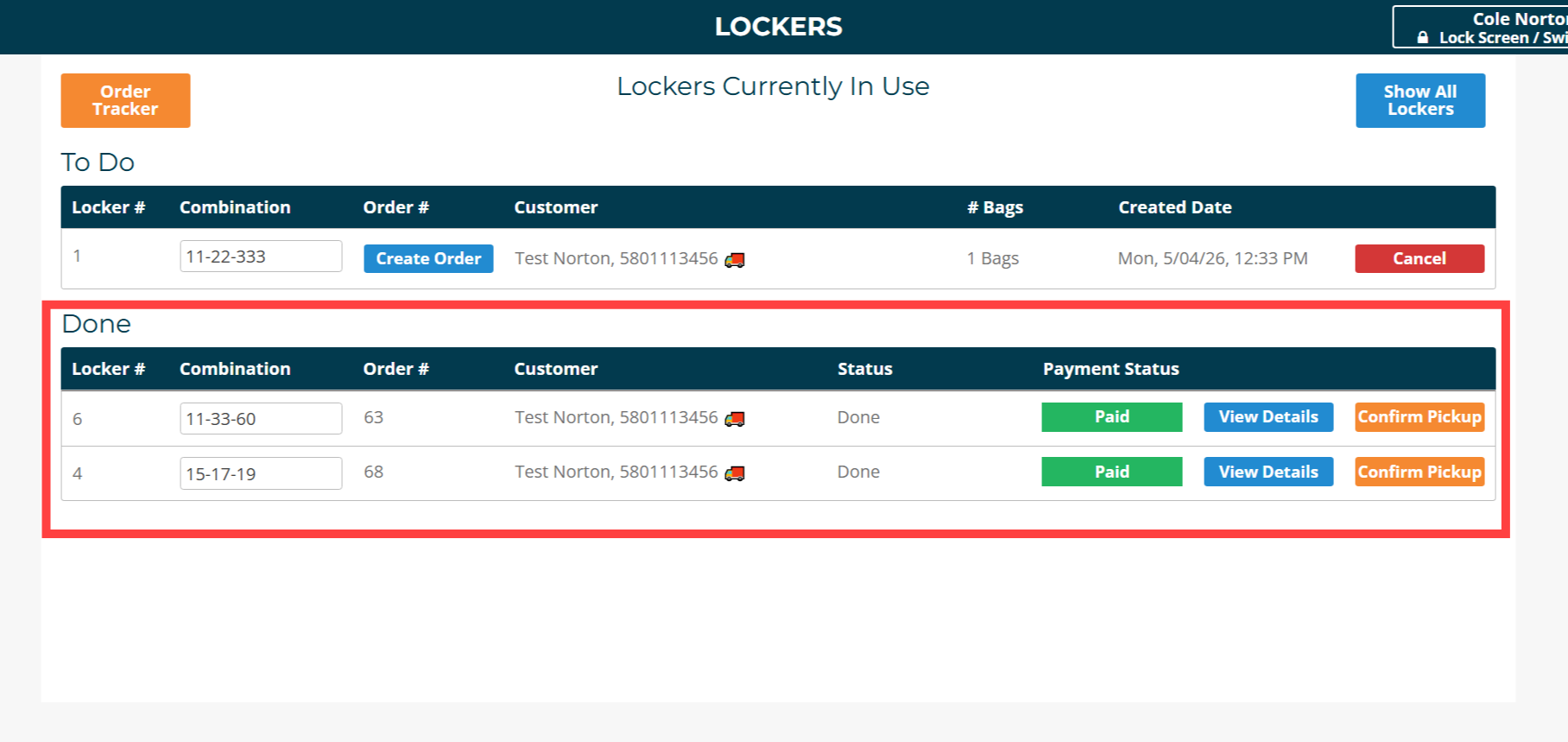
Done Section
The Done section shows completed locker pickups. This is useful for reviewing recent locker activity or confirming that an order was fully handled.
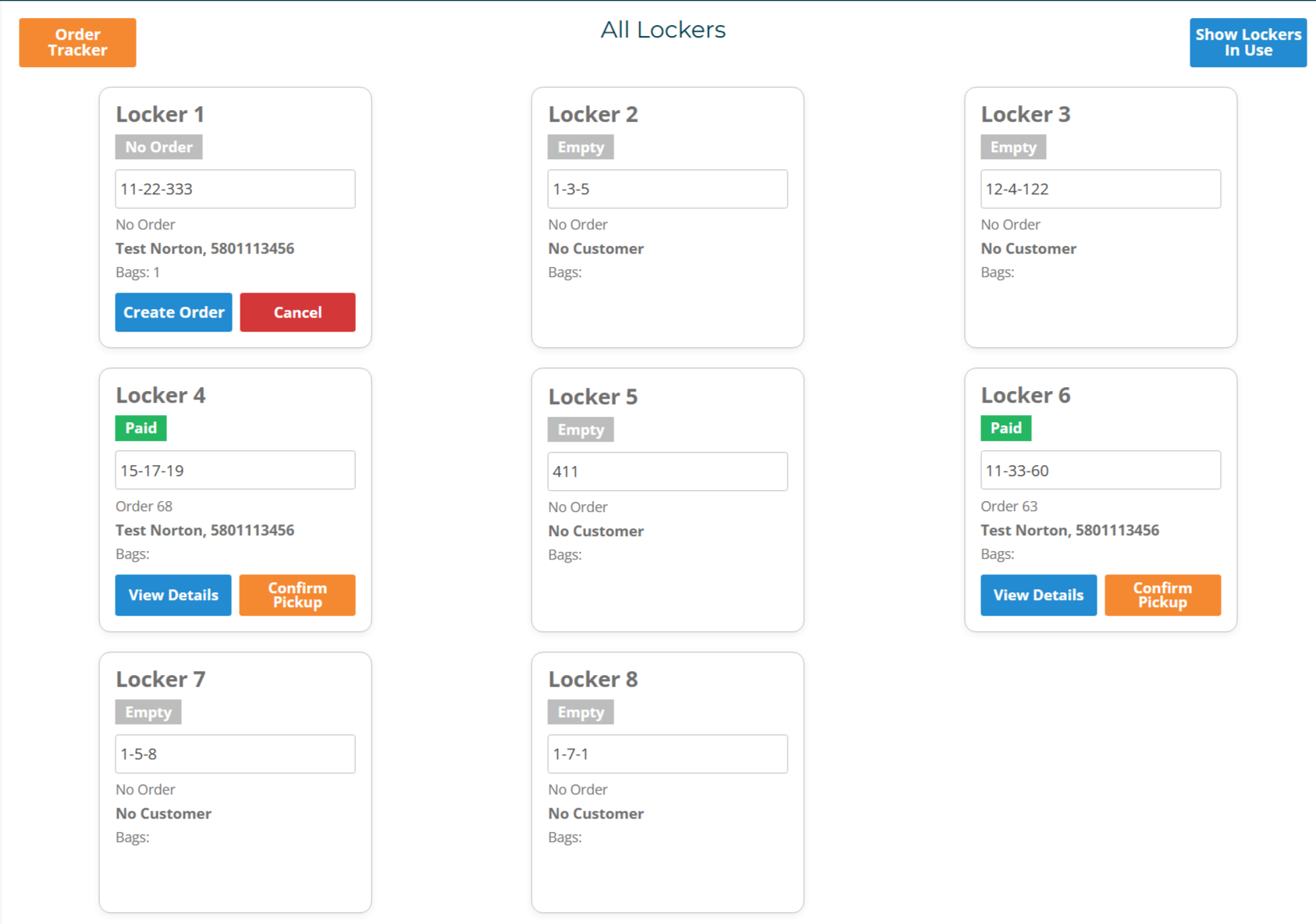
All Lockers Section
The All Lockers section shows every locker at the store and its current status in an easy to read card format.
Each locker card may show:
- Locker number
- Status
- Combo code
- Customer or order information
- Action buttons such as Create Order, View Details, or Confirm Pickup
Locker Statuses
Locker cards may show different statuses depending on where the order is in the workflow.
| Status | Meaning | Staff Action |
|---|---|---|
| Empty | No pickup or order is assigned to the locker. | No action needed. |
| No Order | A locker pickup exists, but staff has not created the order yet. | Retrieve laundry and click Create Order. |
| Unpaid | An order exists, but payment has not been collected. | Collect payment before releasing laundry. |
| Paid | The order is paid and ready for pickup. | Release laundry and click Confirm Pickup. |
| Voided | A payment was voided or needs review. | Review the order before releasing laundry. |
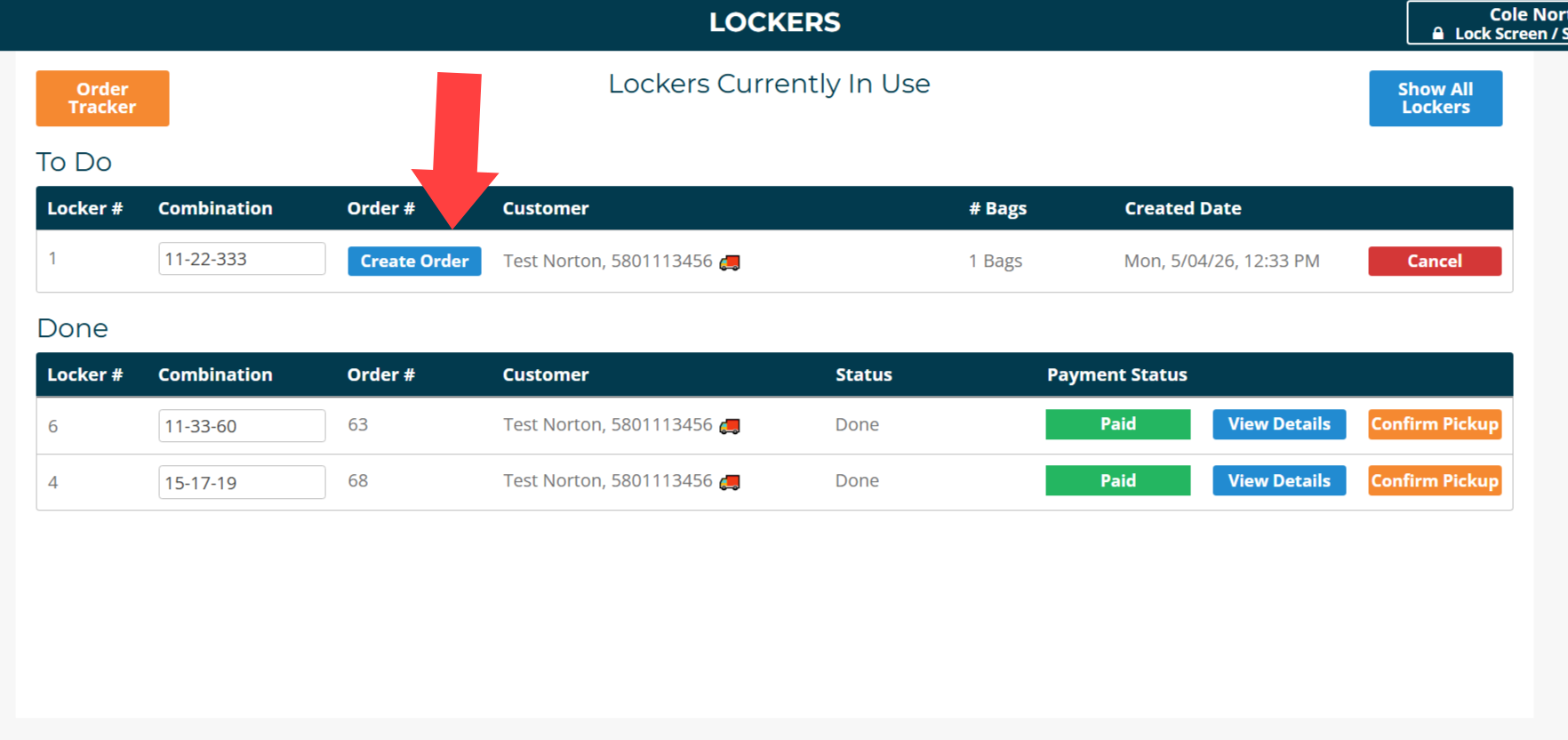
Creating an Order from a Locker Pickup
To create an order from a locker pickup:
- Go to the Lockers page.
- Open the To-Do tab or find the locker in All Lockers.
- Confirm the locker number.
- Use the combo code to open the locker.
- Retrieve the customer’s laundry.
- Click Create Order.
- Select the correct locker pickup if prompted.
- Add items, pricing, and order details as usual.
- Process the order through the normal WDF POS workflow.
The locker pickup and the order are related, but they are not the same thing. The pickup represents the customer’s locker drop-off. The order is what staff processes, prices, and charges.
Returning Finished Laundry to the Locker
After the laundry has been washed, dried, folded, and prepared for pickup:
- Place the completed order back into a locker.
- Make sure the locker is closed and secured.
- Confirm that payment has been collected or that the order is ready to be paid.
- Make sure the customer can access the correct locker information.
If the customer still owes payment, collect payment before releasing the laundry.
Assigning a Locker to an Order
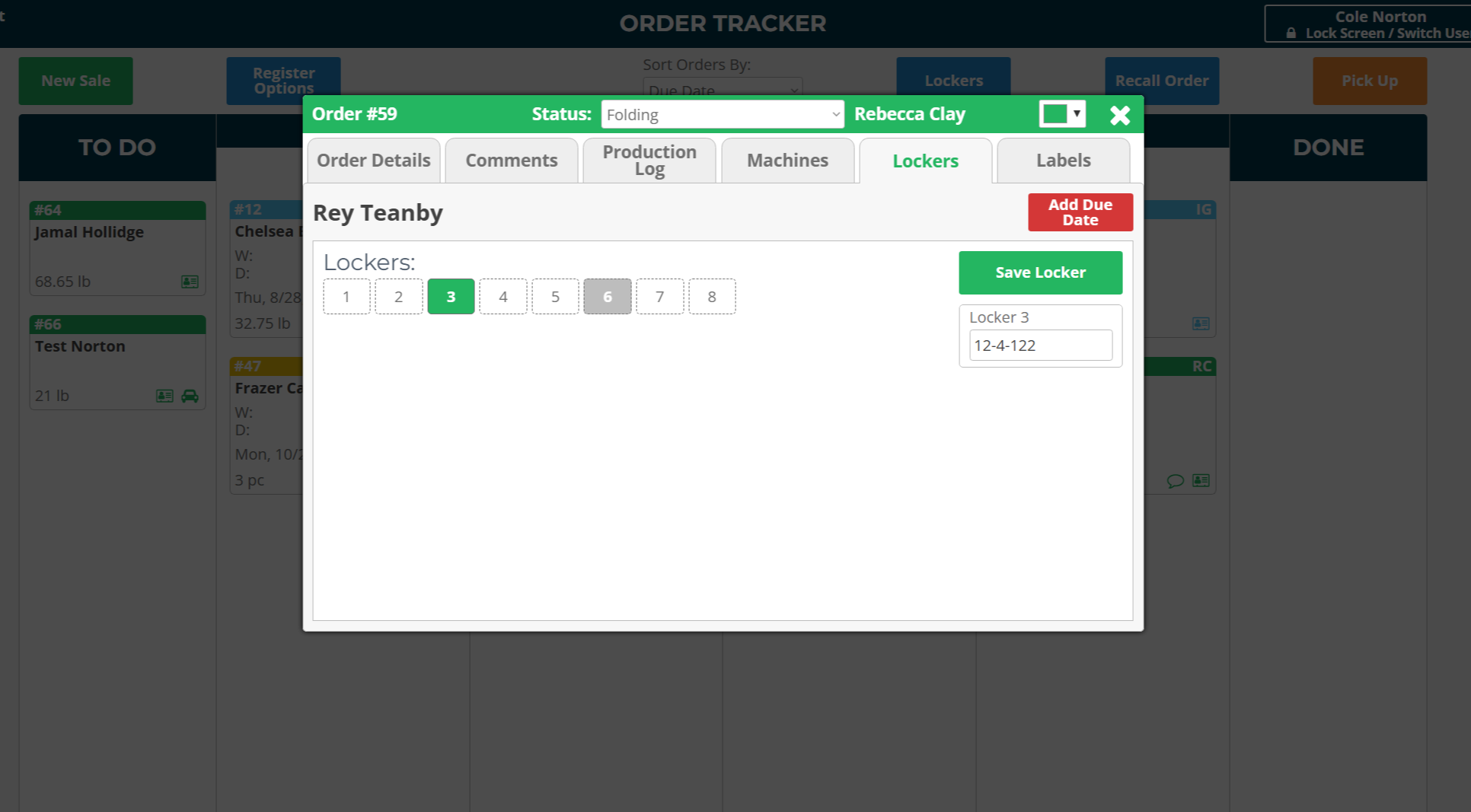
After an order has been processed and is ready for pickup, staff will assign a locker to the order.
To assign a locker:
- Open the order in the Order Tracker
- Click on the Lockers tab
- Select an available locker from the list
- Confirm the locker selection
- Click Save Locker
Once saved, the locker number and combination will be linked to the order.
Sending Locker Details to the Customer
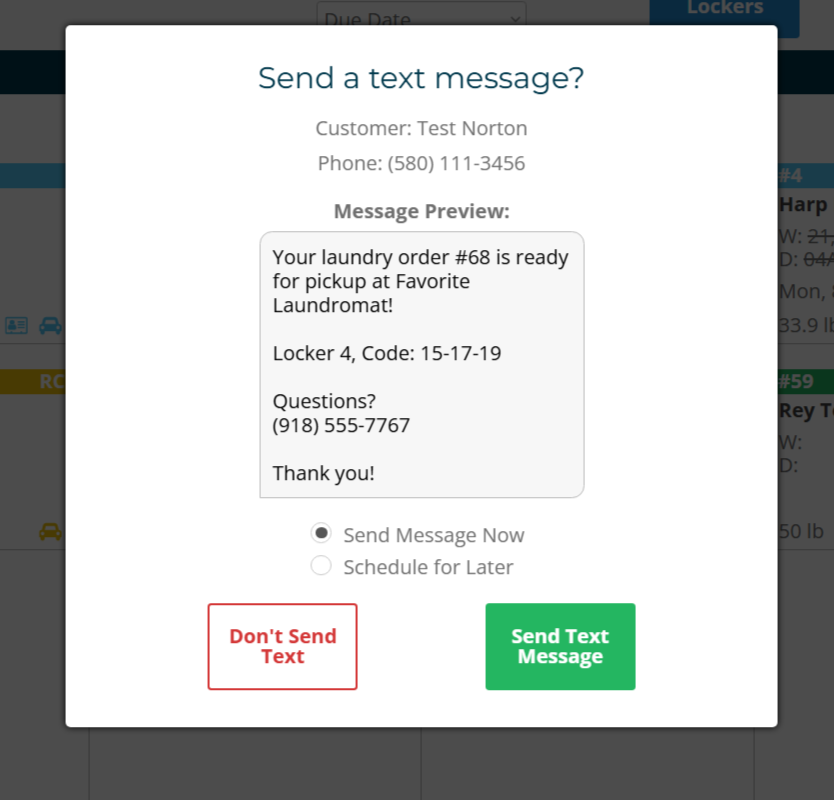
After assigning a locker, you can notify the customer that their order is ready.
To send a text message:
- When moving an order to the "Done" column, the text message prompt will appear automatically.
- Review the message preview
- Confirm the locker number and code are correct
- Click Send Text Message
The message typically includes:
- Order ready notification
- Locker number
- Locker combination code
- Store contact information
Confirming Customer Pickup
When the customer retrieves their laundry, staff or the customer should confirm the pickup.
In WDF POS, staff can click Confirm Pickup on the locker card. On MyLaundryOrder.com, the customer may select Retrieve Locker Order after collecting their laundry.
This step is very important. Confirming pickup:
- Clears the locker assignment
- Marks the pickup as complete
- Moves the locker back to Empty
- Allows the locker to be used by another customer
If pickup is not confirmed, the locker may still appear occupied even though it is physically empty.

Best Practices
- Check the To-Do tab at the start of each shift.
- Always match the locker number in WDF POS to the physical locker.
- Do not rely on the combo code as the locker identifier.
- Create the order as soon as laundry is retrieved.
- Collect payment before releasing finished laundry.
- Always click Confirm Pickup once the customer has retrieved the order.
- Review the All Lockers tab regularly for stuck or unexpected statuses.
Common Issues and Troubleshooting
Locker Appears Occupied but Is Empty
This usually means pickup was not confirmed after the customer retrieved the order.
Check the locker card, review the linked order, and click Confirm Pickup if the order has been completed and released.
Customer Says No Lockers Are Available
All lockers may currently be occupied or assigned. The customer should try again later or contact the store. Staff can check the All Lockers tab to confirm whether lockers are truly occupied or if some need to be cleared.
Locker Pickup Is Missing
Check the following:
- Lockers are enabled for the store
- Lockers are configured in Equipment Setup
- The pickup is not already in the To-Do tab
- The pickup has not already been converted into an order
Order Is Stuck as No Order
This means the customer created the locker pickup, but staff has not created the actual order yet.
Retrieve the laundry, then click Create Order.
Order Is Unpaid
Collect payment before releasing the laundry. Once payment is completed, the locker can be confirmed for pickup and marked as paid.
Important Notes
- A locker pickup is not the same as a processed order.
- Staff must create an order from the locker pickup before laundry can be priced and charged.
- Lockers must be confirmed as picked up before they become available again.
- If a locker is not cleared in the system, customers may be prevented from selecting it.
- Stores should keep physical locker labels matched with the locker numbers in WDF POS.