
ACH Acceptance (CardPointe)
ACH acceptance is now available on the Receive Payment page for On Account customers’ invoice payments. To qualify, one of the stores in your WDF POS account must have a CardPointe merchant account with ACH processing enabled.
How to Enable
- Submit a support ticket to us to request ACH acceptance. Include your Merchant ID in your message. You can find it in WDF POS by going to Store Settings > Credit Card Acceptance > Merchant ID.
- We will reply with a Fiserv ACH Processing Services Application for you to complete and return to us, along with a photocopy of the merchant account owner's driver's license.
- We will then submit a request to CardPointe on your behalf to enable ACH acceptance for your merchant account.
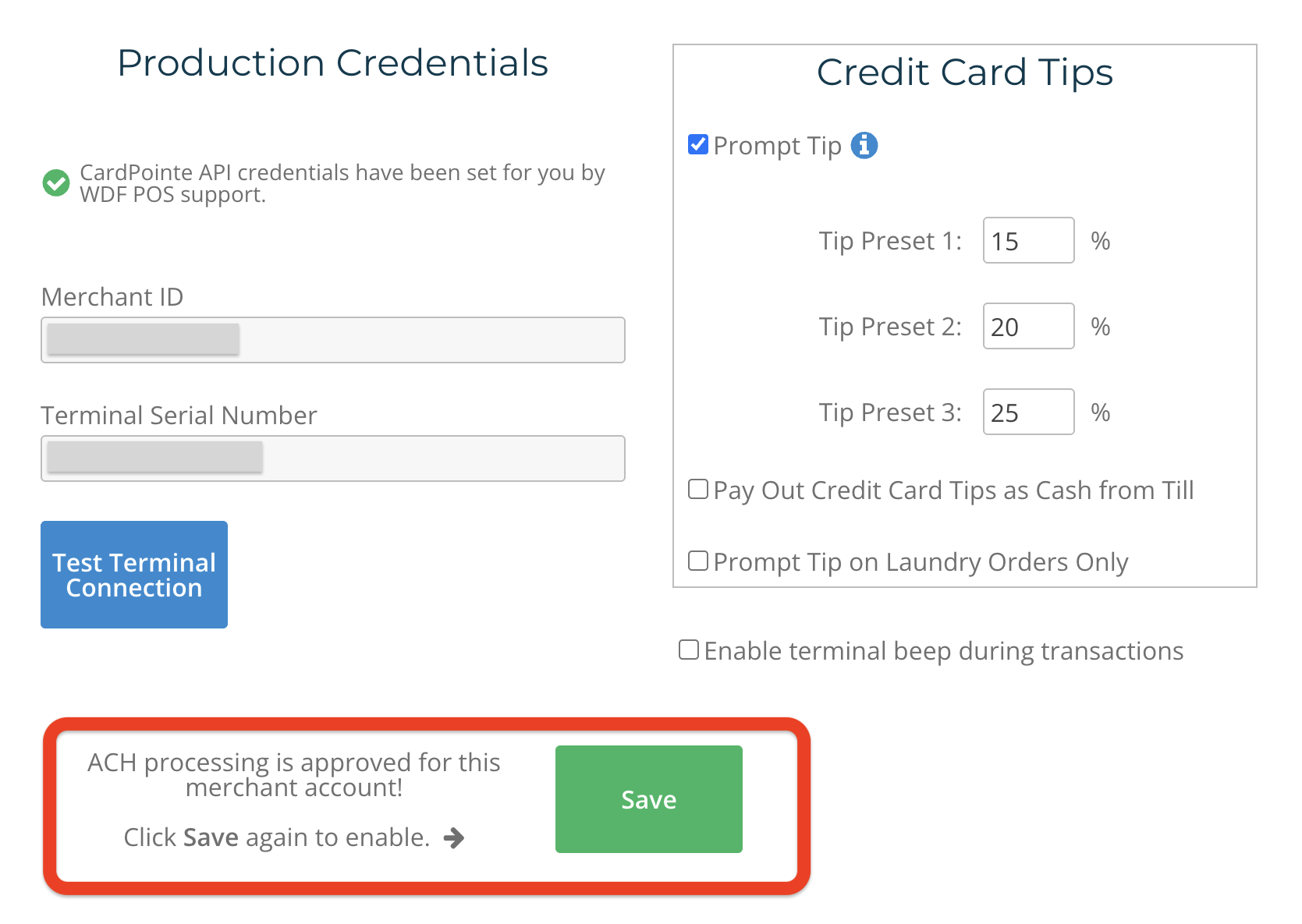
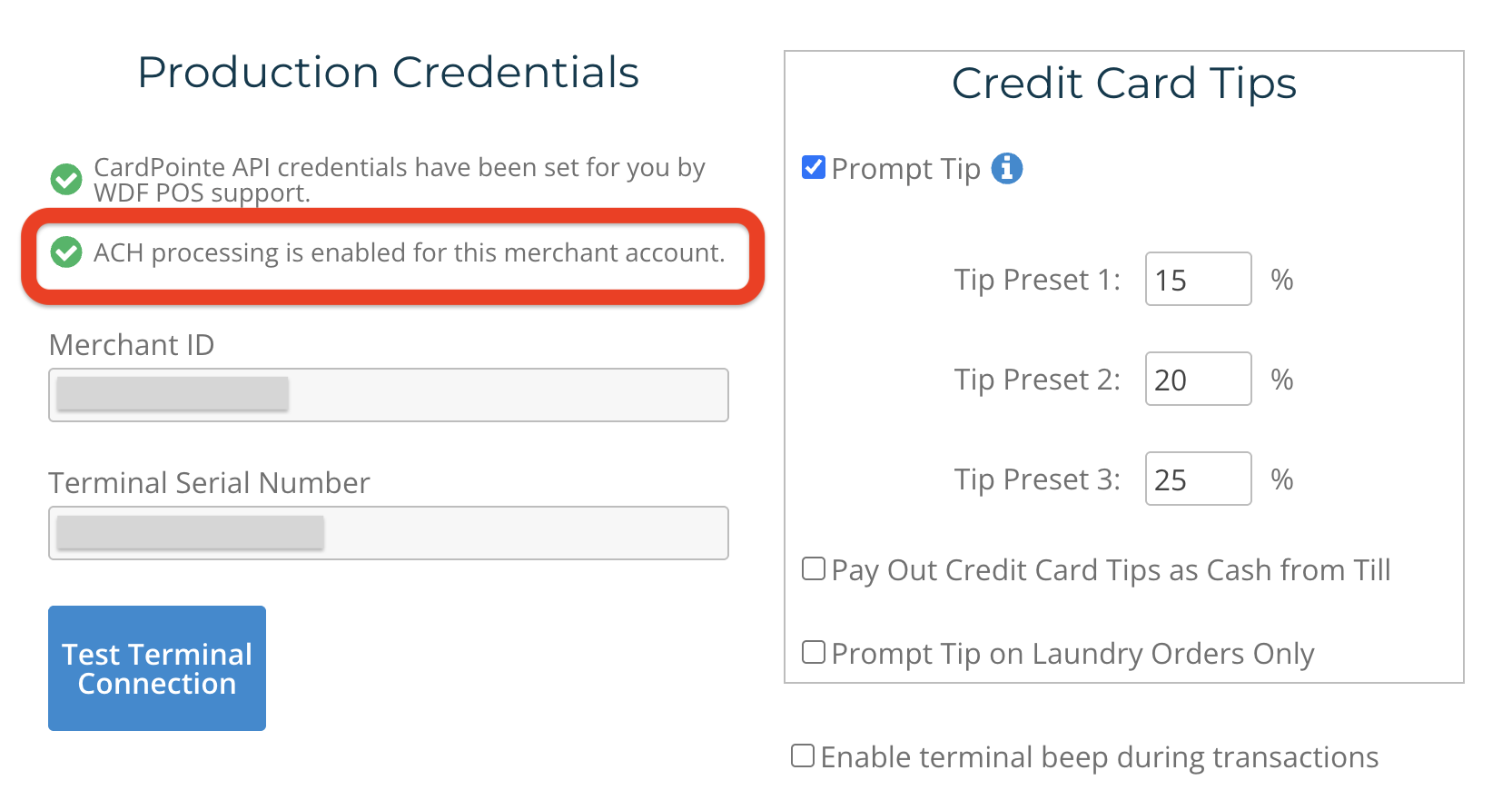
- Once approved, activate the feature in WDF POS. Go to the Store Settings page’s Credit Card Acceptance tab and click the green Save button. WDF POS will check and update your merchant account’s status accordingly. You should see the words “ACH processing is enabled for this merchant account” next to a green check mark if successful.
Add an ACH Account on File
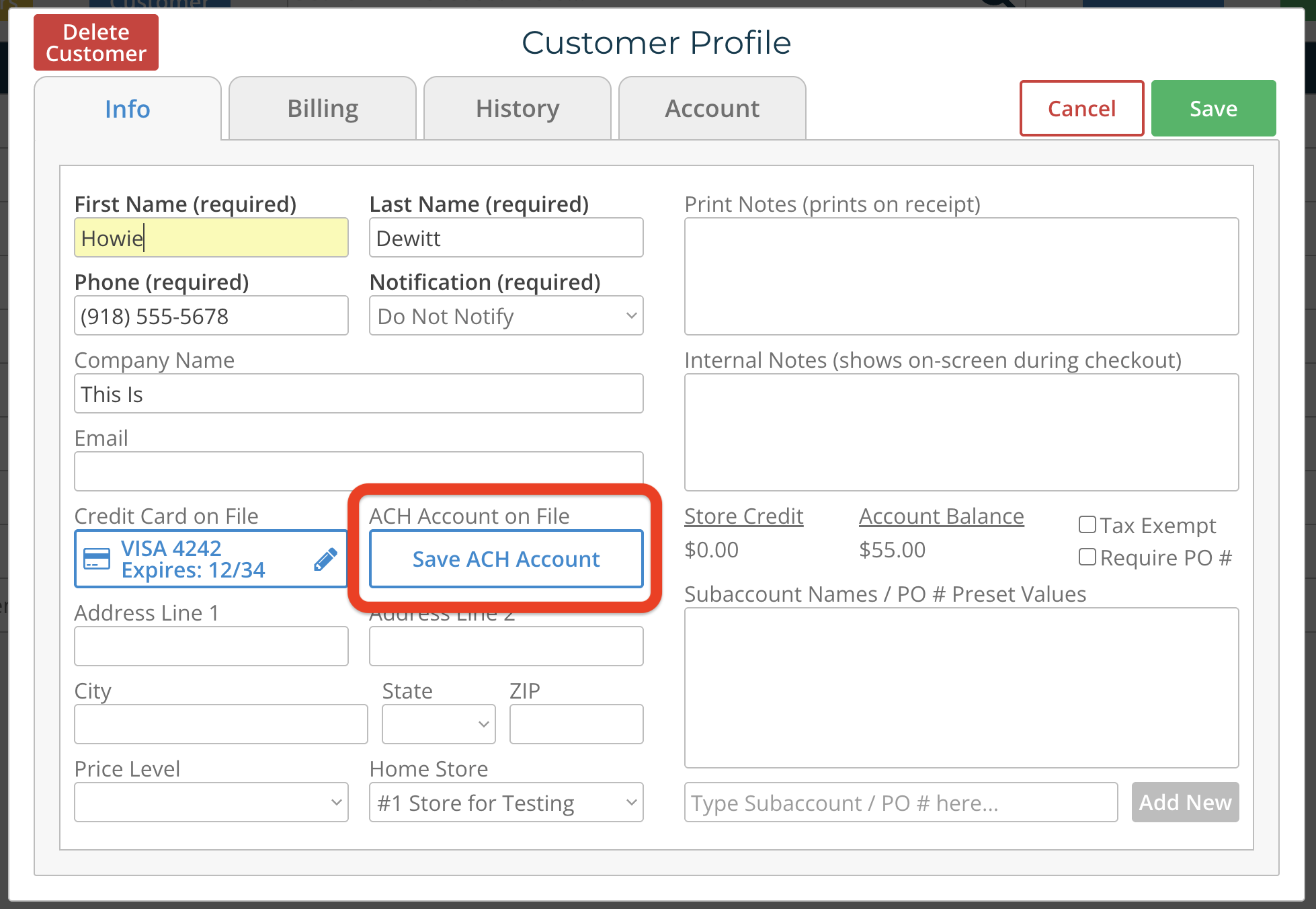
Open the Customer Profile popup. The customer’s Home Store must be one with an ACH-enabled merchant account. Click the blue Save an ACH Account on File button.
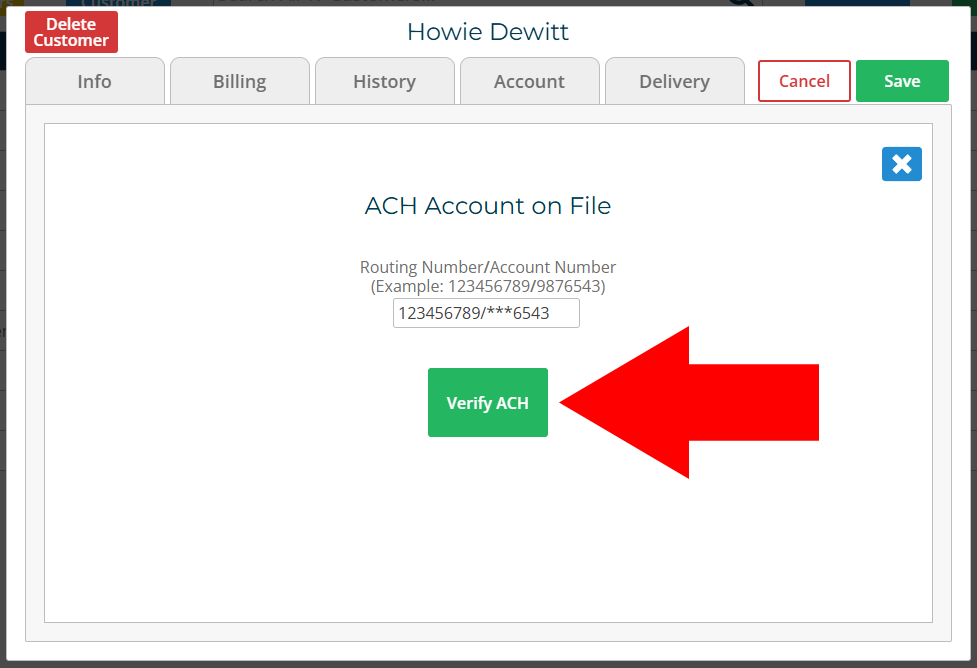
Enter the routing number FIRST, followed by a slash (/), then the account number.
           Routing/Account
Example: 123456789/9876543
The input will mask the routing and account number with asterisks (*) if formatted correctly. Click the green Verify ACH button. Click the blue X button in the top right corner to exit the ACH on File screen, then click the green Save button to close the Customer Profile popup.
ACH Payment for Invoice
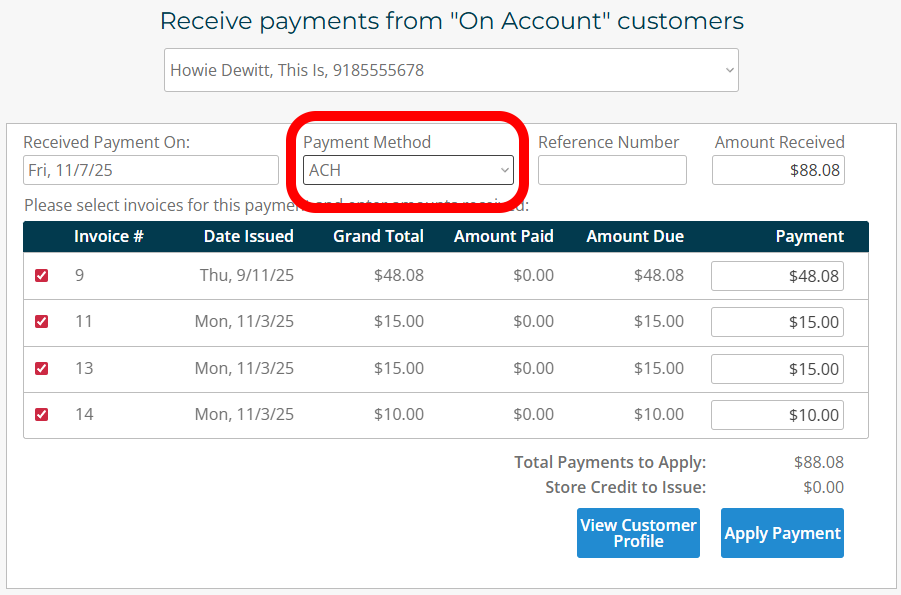
After you have added an ACH account on file, you may use it to pay invoices on the Receive Payment page by selecting ACH as the Payment Method. After payment, the invoice will update with the ACH transaction’s details for future reference.
Void ACH Invoice Payment
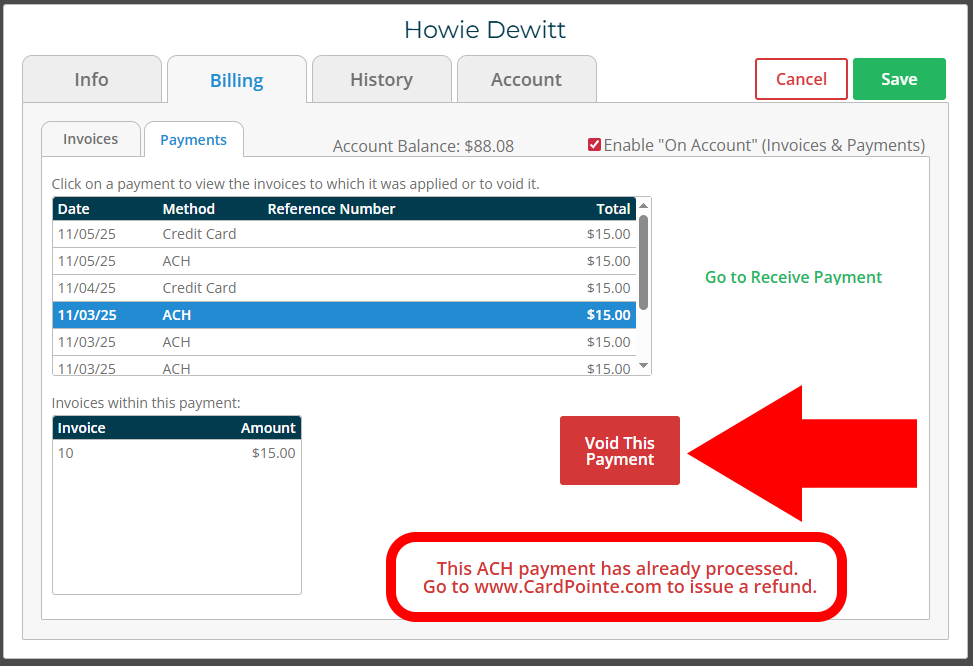
To void an ACH invoice payment, locate and select it from the list on the Customer Profile popup, under the Billing tab’s Payments sub-tab. Click the red Void Payment button, then enter your admin or manager password to confirm, just like when voiding any other invoice payment. If it is still the same day the payment was originally created, the ACH transaction will automatically be voided in www.cardpointe.com. If it’s the next day or later, you must also go to www.cardpointe.com and manually issue a full refund there. Partial refunds are not supported for ACH transactions.
Refund on CardPointe
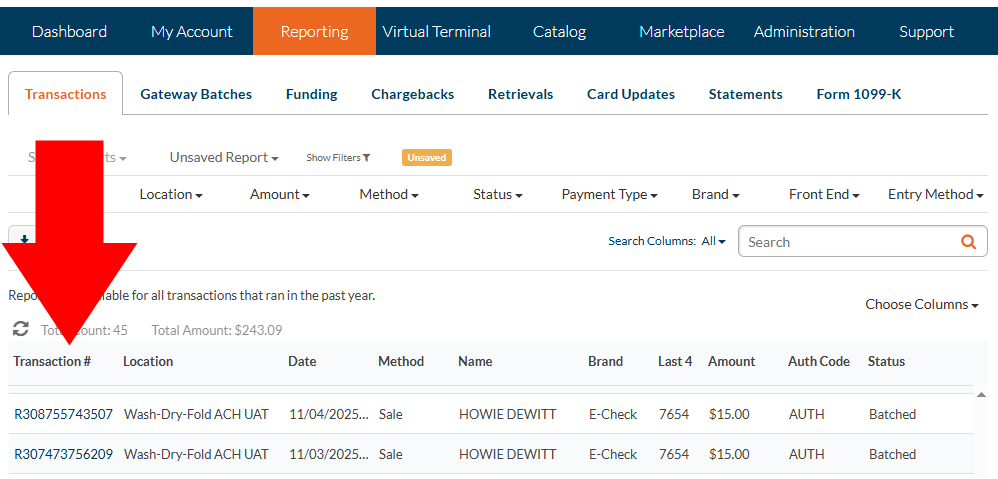
To issue a refund on www.cardpointe.com, locate the transaction on the Reporting page’s Transactions tab, then select it by clicking its Transaction #.
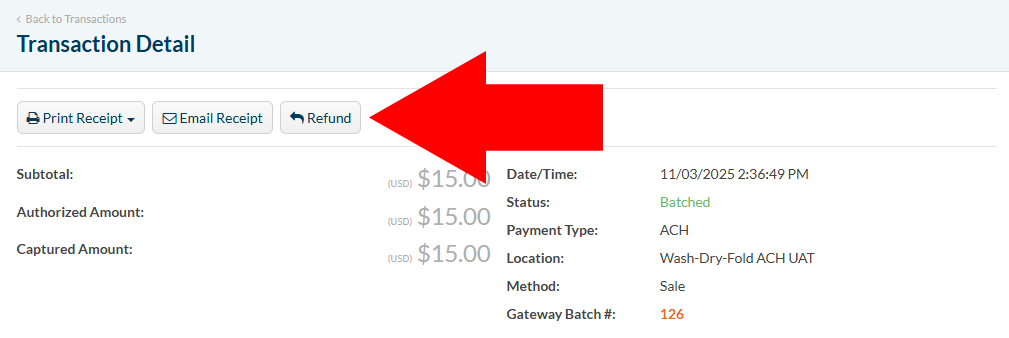
Click the Refund button near the top of the transaction details page. Write a short description in the Refund Reason field and then click the popup’s Refund button.
ACH Rejects
Although ACH transactions can appear to be successfully captured before settlement, the issuing bank can still respond with a rejection for any number of reasons. This will reverse the funds and will appear in CardPointe reporting as a separate transaction with a Method of ACH Reject. The speed of these rejections depends on the issuing bank.
Check the status of your ACH transactions at regular intervals on the Reporting page’s Transactions tab at www.cardpointe.com to ensure that any ACH Rejects are found and addressed.