
Online Delivery Instructions
Online Delivery Instructions for MyLaundryOrder.com
How to Create Custom Instruction Presets for Pickup and Delivery Orders
You can now create customized instruction options that customers can select when placing an online pickup or delivery order through MyLaundryOrder.com. These presets help streamline communication and ensure your team receives clear, consistent preferences from customers.
This guide walks you through setting up these instruction options in Store Settings and shows what customers will see when placing an online order.
Where to Find This Feature
In WDF POS:
- Go to the gear icon in the top right.
- Click Store Settings.
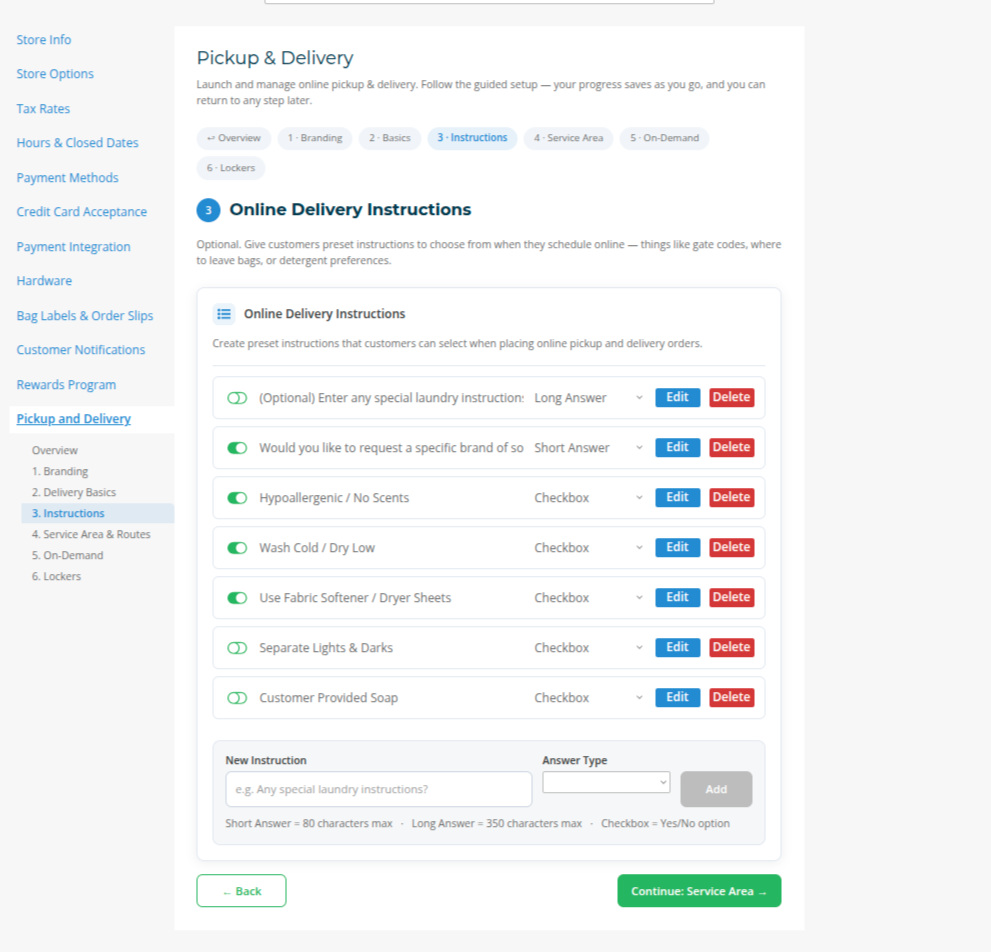
- Select the Online Delivery Instructions section of the Pickup and Delivery tab in the left-side menu.
You will now see the full list of customizable questions for online orders.
How This Feature Works
Each instruction is displayed as a selectable option during the online ordering process. This gives your customers a simple way to communicate preferences such as detergent type, water temperature, fragrance choices, and other special instructions.
These settings apply only to online orders placed through MyLaundryOrder.com. They do not affect in-store drop off orders.
Creating a New Instruction
At the bottom of the page, you will see fields for adding a new question.
-
Enter your question into the Question field.
Choose a Question Type:
-
Short Answer
Customers can type up to 80 characters.
-
Long Answer
Customers can type up to 350 characters.
-
Checkbox
A simple yes or no option for the customer.
-
- Click Save New Question.
Your new instruction will now appear in the list above.
Editing or Deleting an Instruction
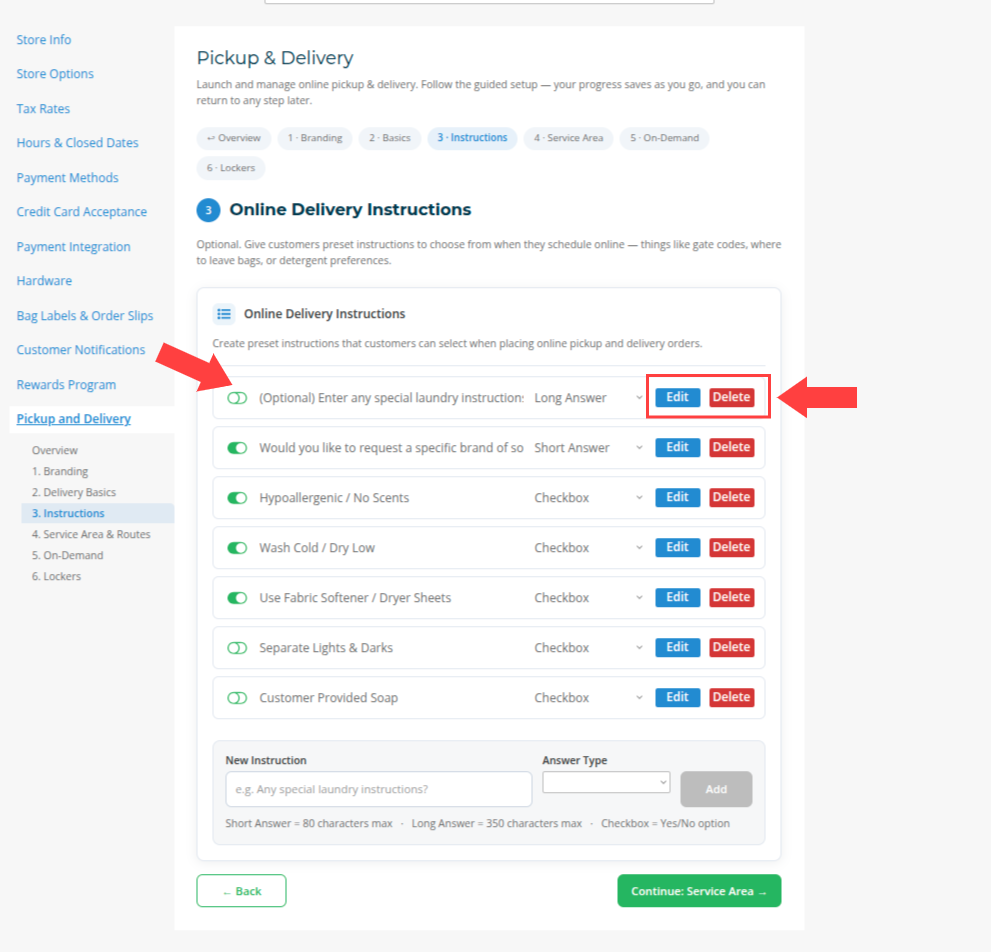
Every instruction in the list has options to edit or delete it.
- Edit lets you update the question or the input type.
- Delete permanently removes the instruction.
You can also choose whether a question is currently active by checking or unchecking the Enabled box.
What Customers See on MyLaundryOrder.com
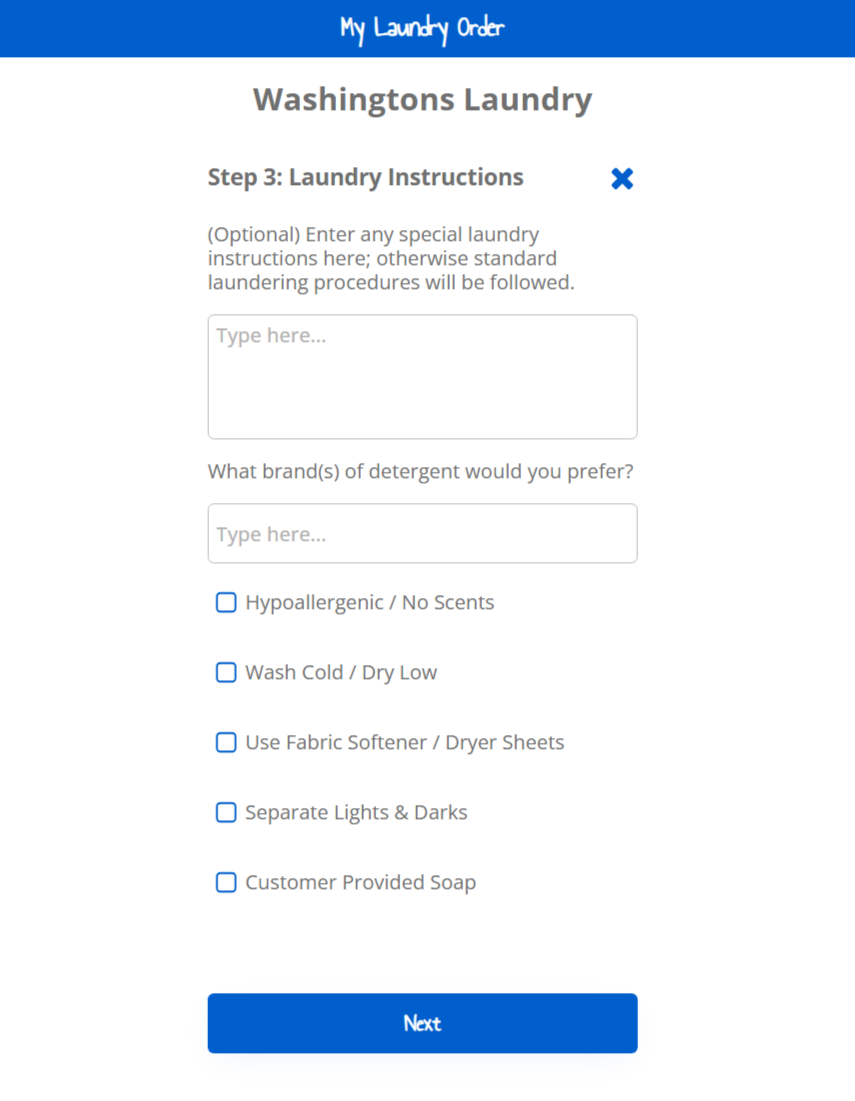
When customers get to Step 3 of the order process, they will see the exact questions you enabled.
Examples of instructions you might add:
- “What brand of detergent do you prefer?”
- “Use cold wash only”
- “Separate lights and darks”
- “Hypoallergenic or no scents”
- “Customer provided soap included in bag”
Short and long answer fields appear as text boxes, while checkboxes appear as simple selectable options.
This gives customers an easy way to communicate expectations without needing a phone call or manual note entry. All inputs flow directly into WDF POS once they submit the order.
How Instructions Appear in WDF POS
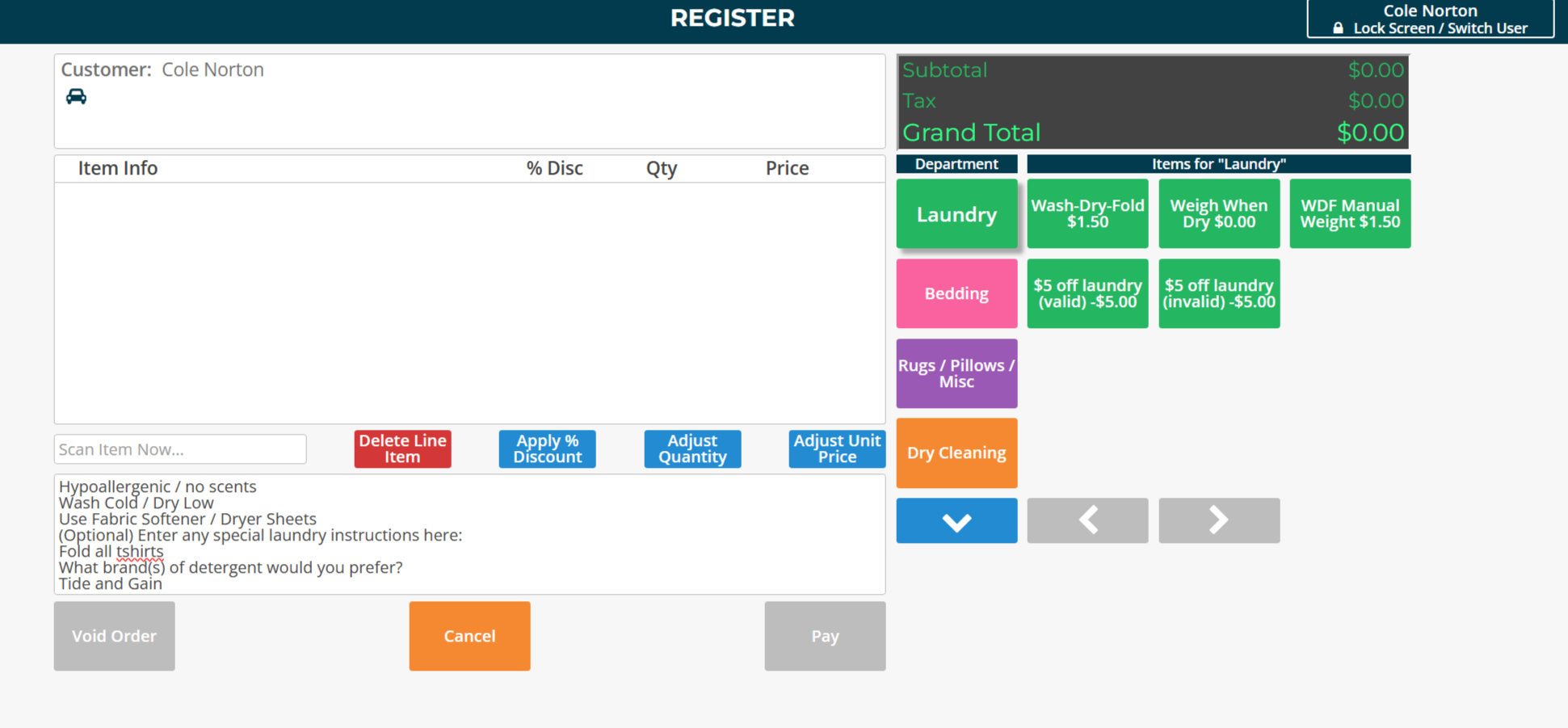
When the order is opened in the Register (New Sale):
• All selected options and written instructions appear in the order notes area at the bottom of the screen before checkout
• This gives attendants an exact list of customer preferences before processing the order.
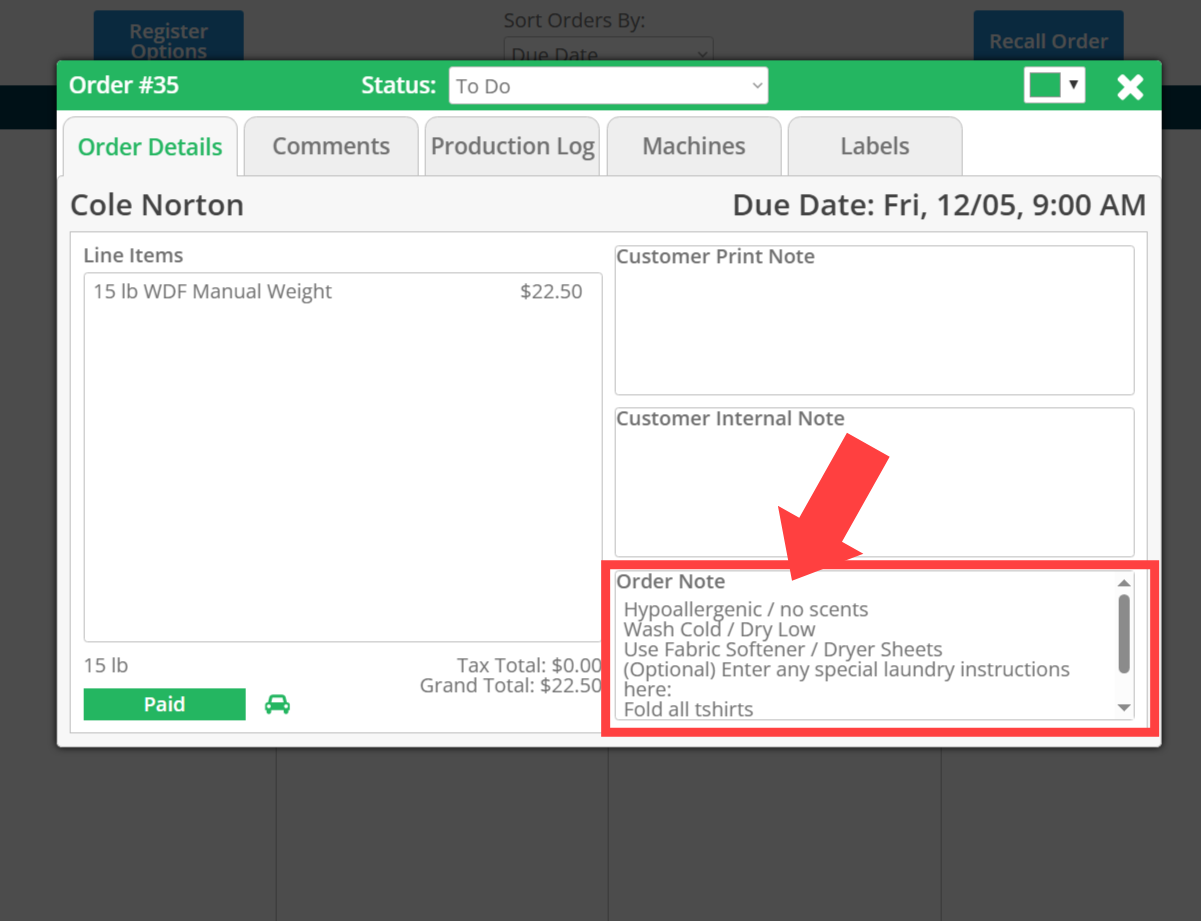
After the order is created
- Inside the Order Tracker, open the Order Details window.
- Customer instructions will appear inside the Order Note section exactly as they were submitted.
Tips for Best Results
• Keep questions short and clear.
• Use checkboxes for routine preferences.
• Use text fields only when extra detail is needed.
• Avoid adding too many questions, as this can overwhelm customers.
• Update your presets seasonally or as your workflow changes.