Recalling Orders and Reprinting Receipts
Recall Order
Accessing Recall Order
- From the Register page, select Recall Order.
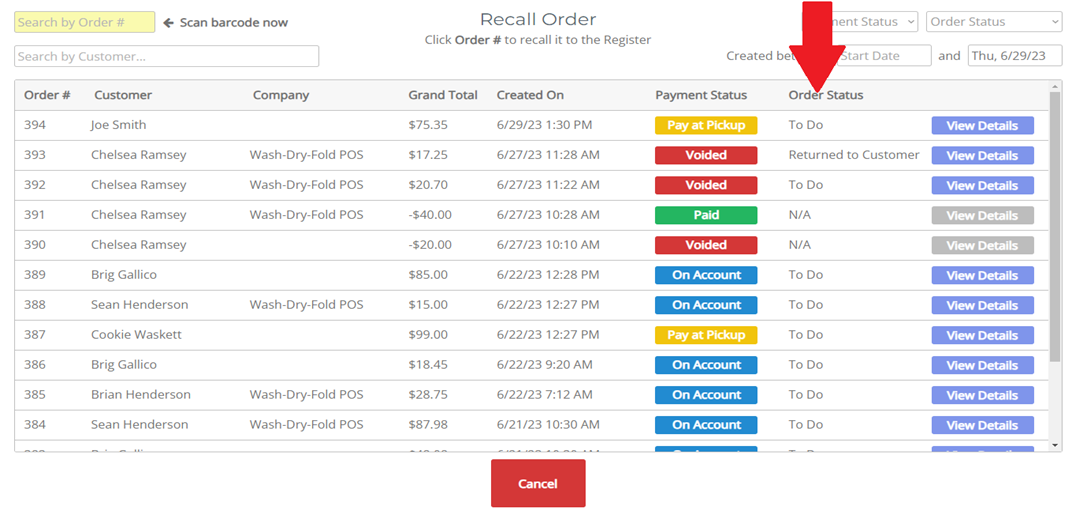
- A list of all orders will be displayed, showing:
- Order #
- Customer Name
- Grand Total
- Date of Order Creation
- Payment Status
- Order Status


Recalling & Editing an Order
- To recall an order, click on the customer’s order from the list.
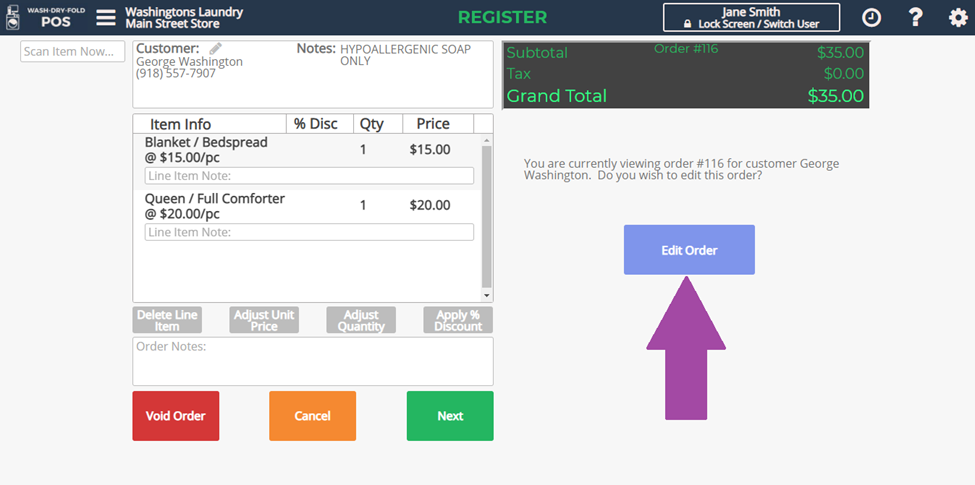
- On the order details screen, select Edit Order (only available for Pay at Pickup orders).
- Modify line items as needed:
- Add or remove items
- Adjust quantities
- Apply or remove discounts
- If the order was already paid, it is considered closed, and line items cannot be changed.
- You can also:
- Void the order (cancels the order and refunds any payments)
- Reprint the receipt
Voiding a Credit Card Transaction
- If a credit card transaction is voided on the same day, the pending authorization will be removed, and the customer will not be charged.
Viewing Order Details by Status
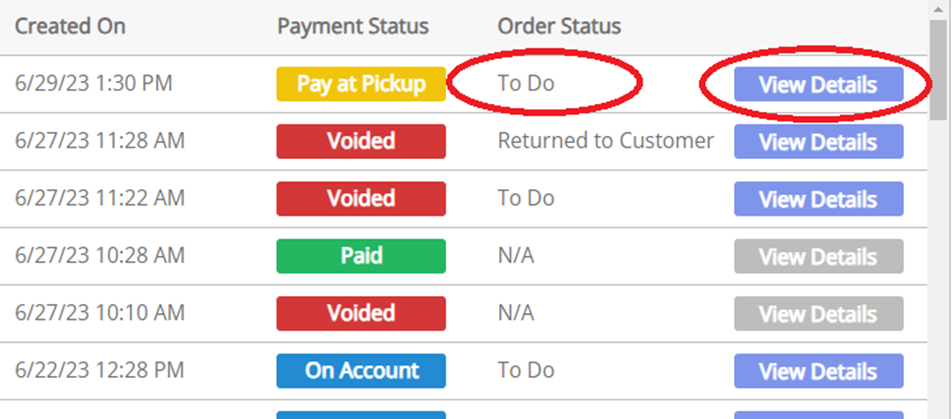
- The Order Status column allows filtering orders by their status.
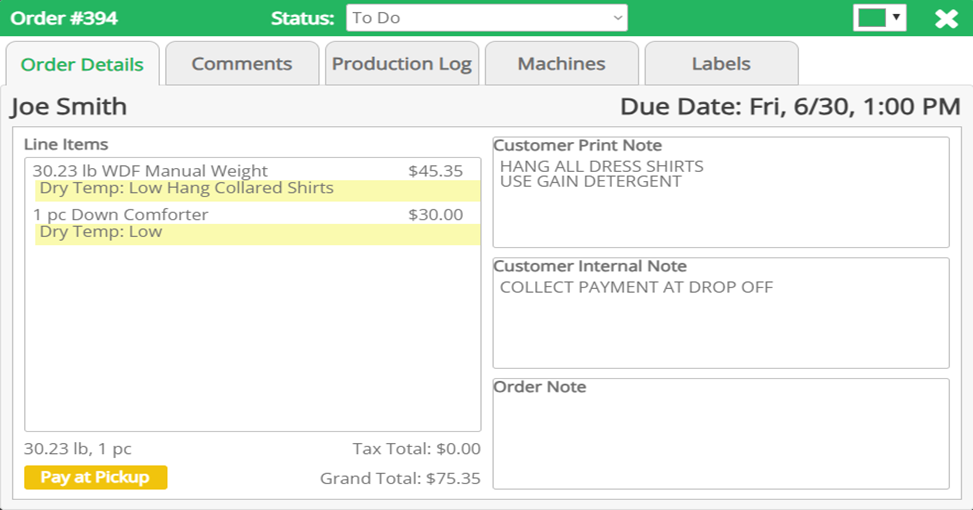
- Click on an Order Status or the View Details button to:
- See order details
- View customer comments
- Check the production log
- See machines used
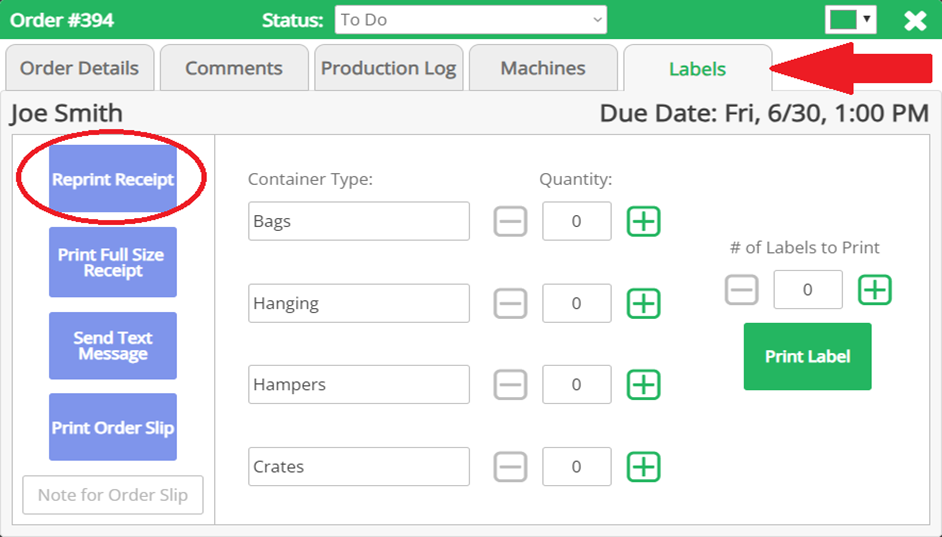
- Print labels
-
Reprint Receipt
Finding a Paid Order for Reprinting
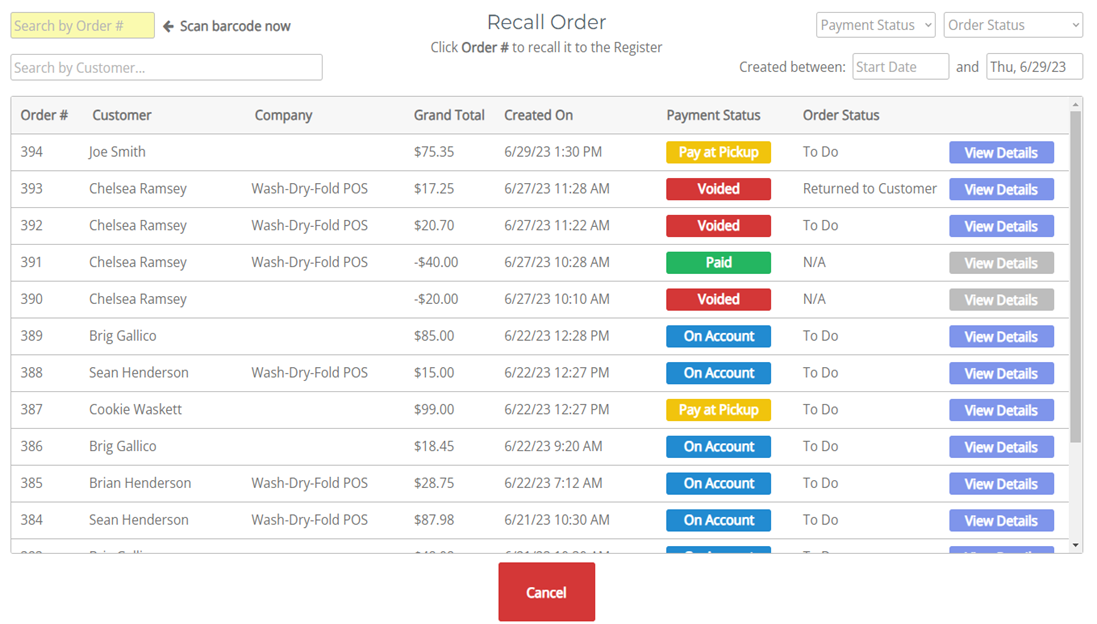
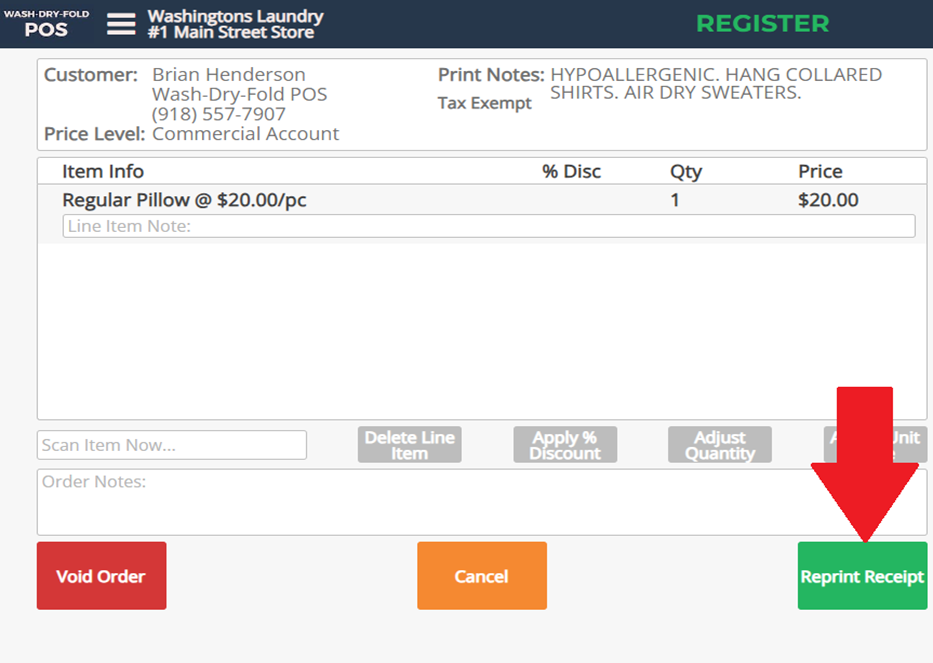
- In the Recall Order tab, locate the order you need.
- Tap the left half of the order (where the order number and/or customer name is displayed).
- This will automatically open the order.
- Click the Reprint Receipt button.
Reprinting from the Order Tracker
- If the order has not been paid, it may be easier to access via Order Tracker.
- Select Order Status or click View Details to go to the Customer Card.
- From the Customer Card, a receipt can be reprinted at any time under the Labels tab.
No results found


