
Refunds & Store Credit
Refunds
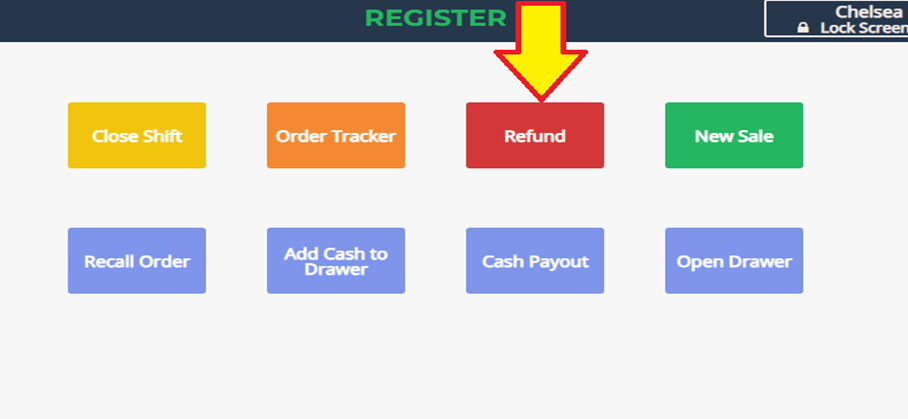
Step 1: Accessing the Refund Function
- From the Register page, select Refund.
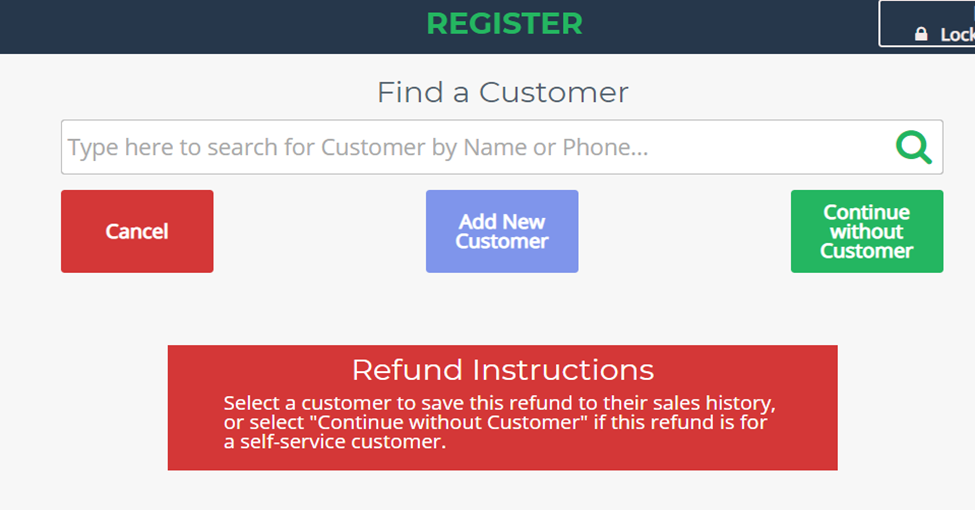
- Choose whether to:
- Select a customer to issue a refund to.
- Continue without a customer (common in laundromats issuing refunds for self-serve machine issues).
Step 2: Entering the Refund Details
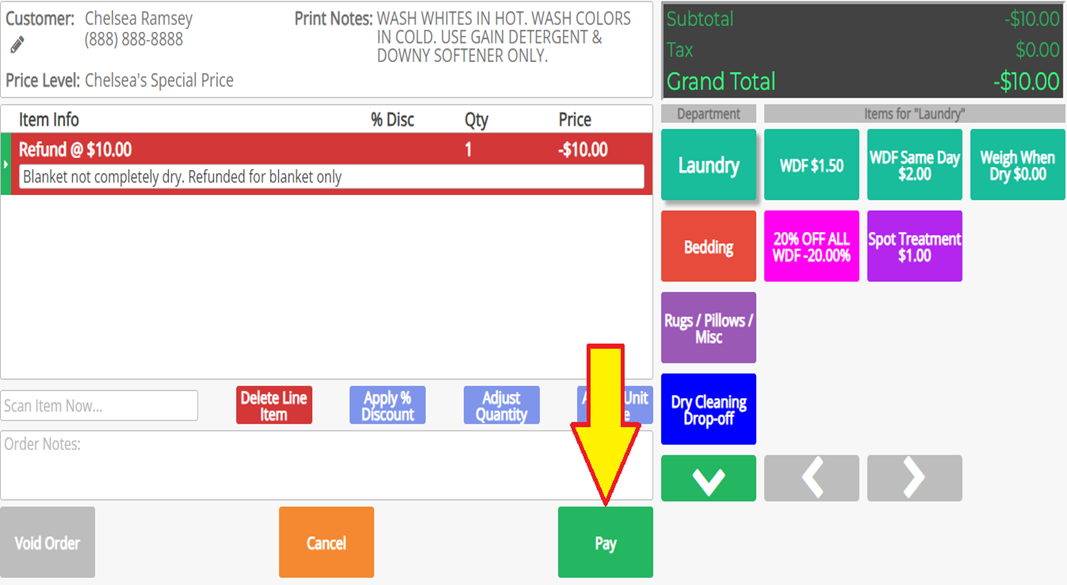
- Enter the amount to refund.
- You must enter a reason for the refund.
- Once the refund amount and reason are entered, the green "Pay" button will be enabled.


Step 3: Selecting the Refund Method
- Click the Pay button to proceed.
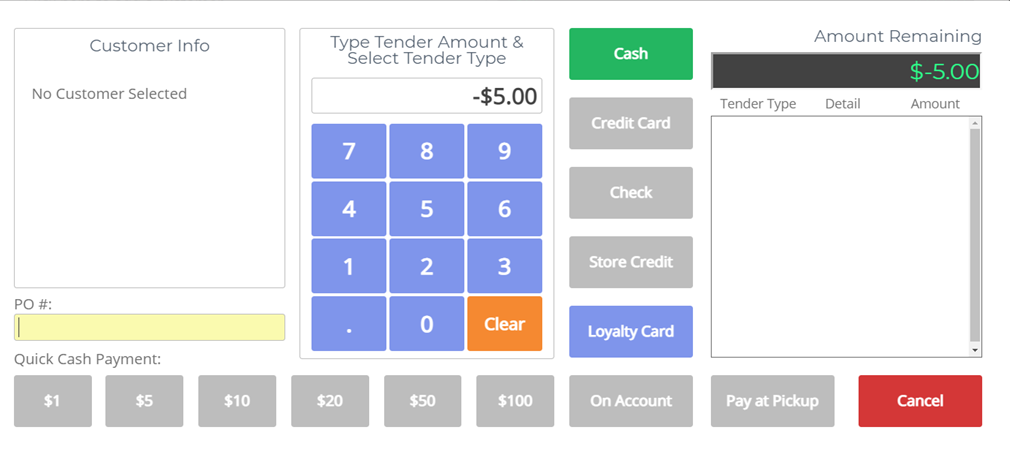
- Select Cash or Credit Card as the refund method:
- Cash Refund: Immediately return the cash amount to the customer.
- Credit Card Refund: The customer’s card must be physically present. Insert, swipe, or tap the card on the reader.
Store Credit
Step 1: Accessing the Store Credit Function
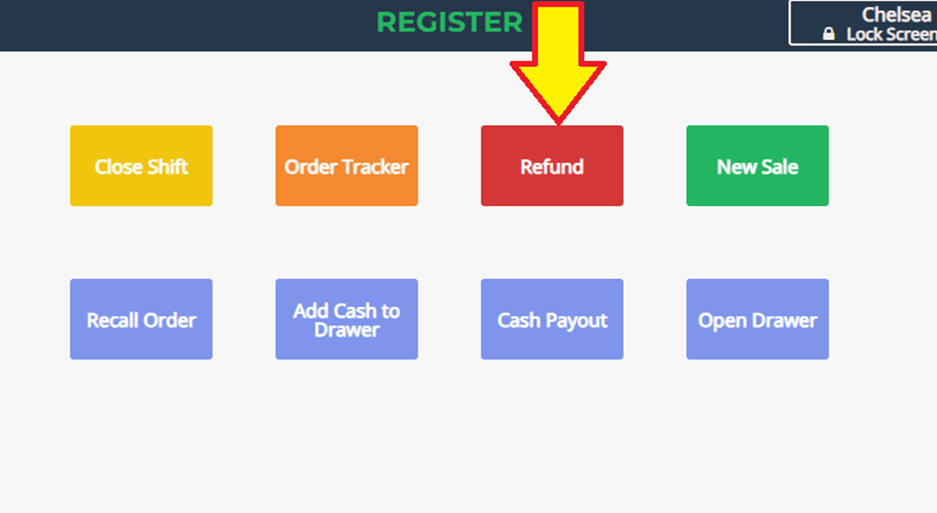
- From the Register page, select Refund.
Step 2: Selecting a Customer
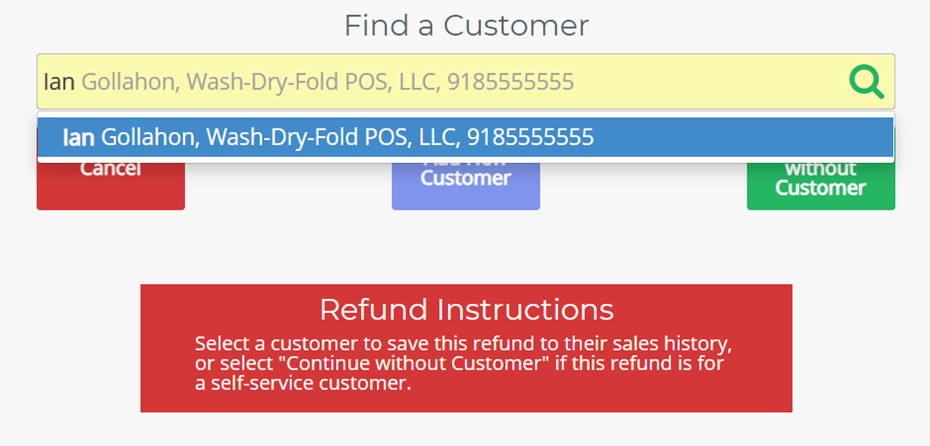
- Store credit requires a customer to be selected.
- Choose the customer that will receive the credit.
Step 3: Entering the Store Credit Details
- Enter the amount to be credited.
- Enter a reason for the credit (similar to refunds).
- If the green "Pay" button is grayed out:
- Hit the Enter key on your keyboard.
- Tap anywhere on the background to activate the button.
Step 4: Completing the Store Credit Transaction
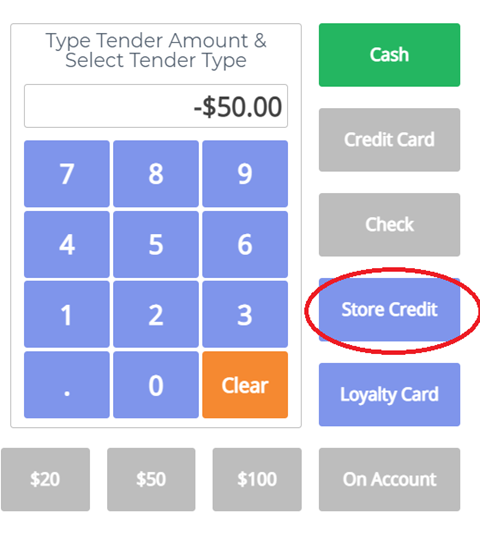
- Proceed to the payment screen.
- Select Store Credit instead of Cash or Loyalty Card.
- The system will apply the credit to the customer's account for future use.
For further assistance, contact Wash-Dry-Fold POS Support.