Print, Save, or Email Invoices and Receipts
You can download invoices and receipts as PDF files or email them directly to the customer. To get started, open the invoice or receipt’s printer-friendly page.
View Invoice
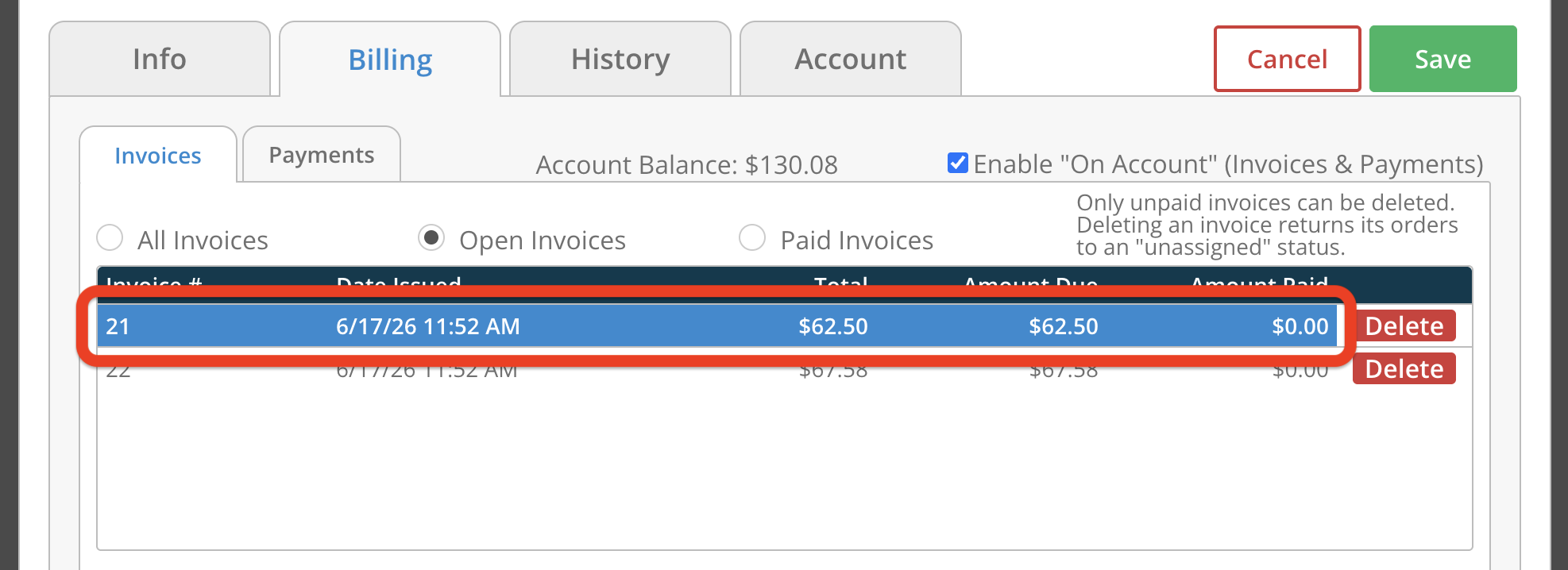
Option 1: Click an invoice on the Customer Profile popup's Billing tab.
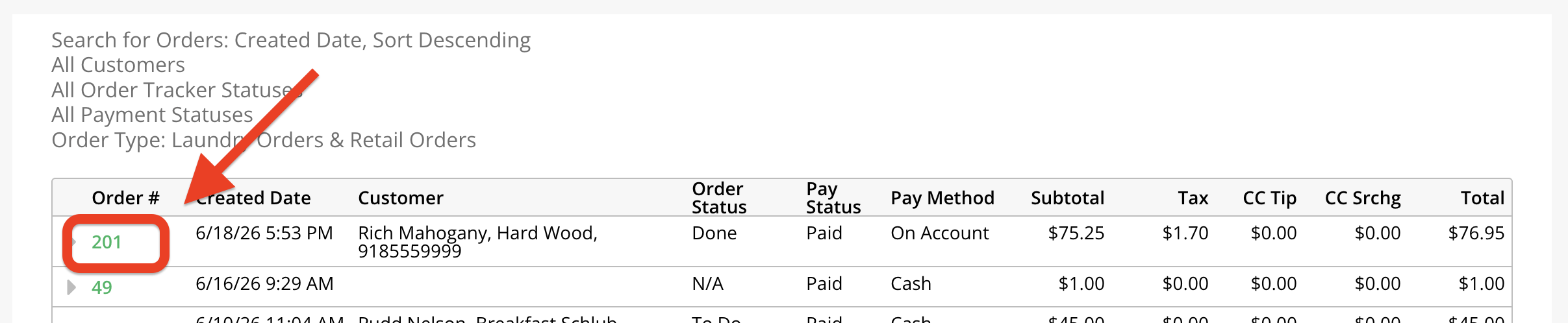
Option 2: Click an invoice number on the Invoice List report.

View Full Size Receipt
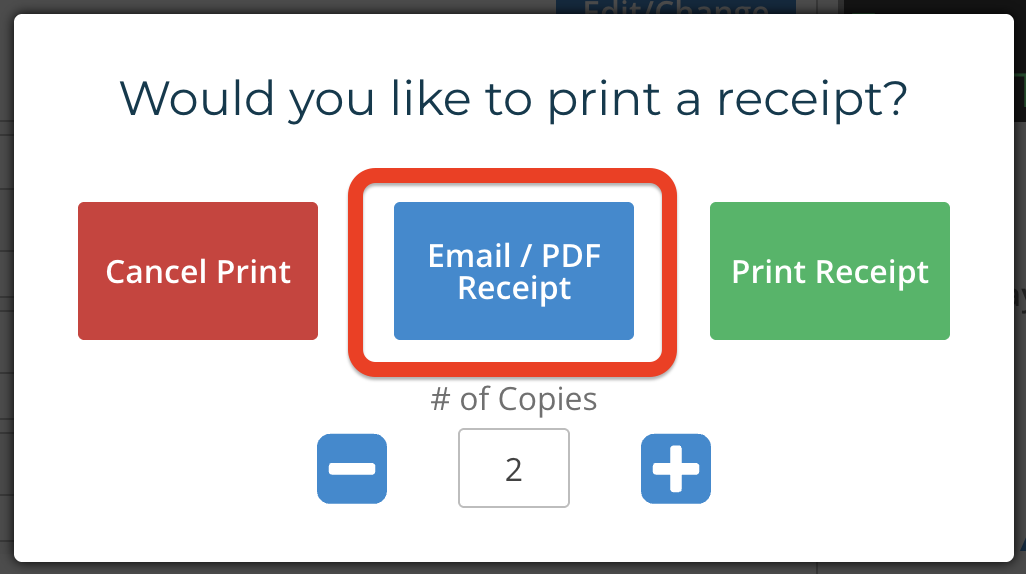
Option 1: Click the Email/PDF Receipt button in the Print Receipt popup. This button only appears for orders with a customer.
Option 2: Click the View Details button on Recall Order screen. This is only for non-laundry orders; otherwise, clicking the button opens the Order Details popup.

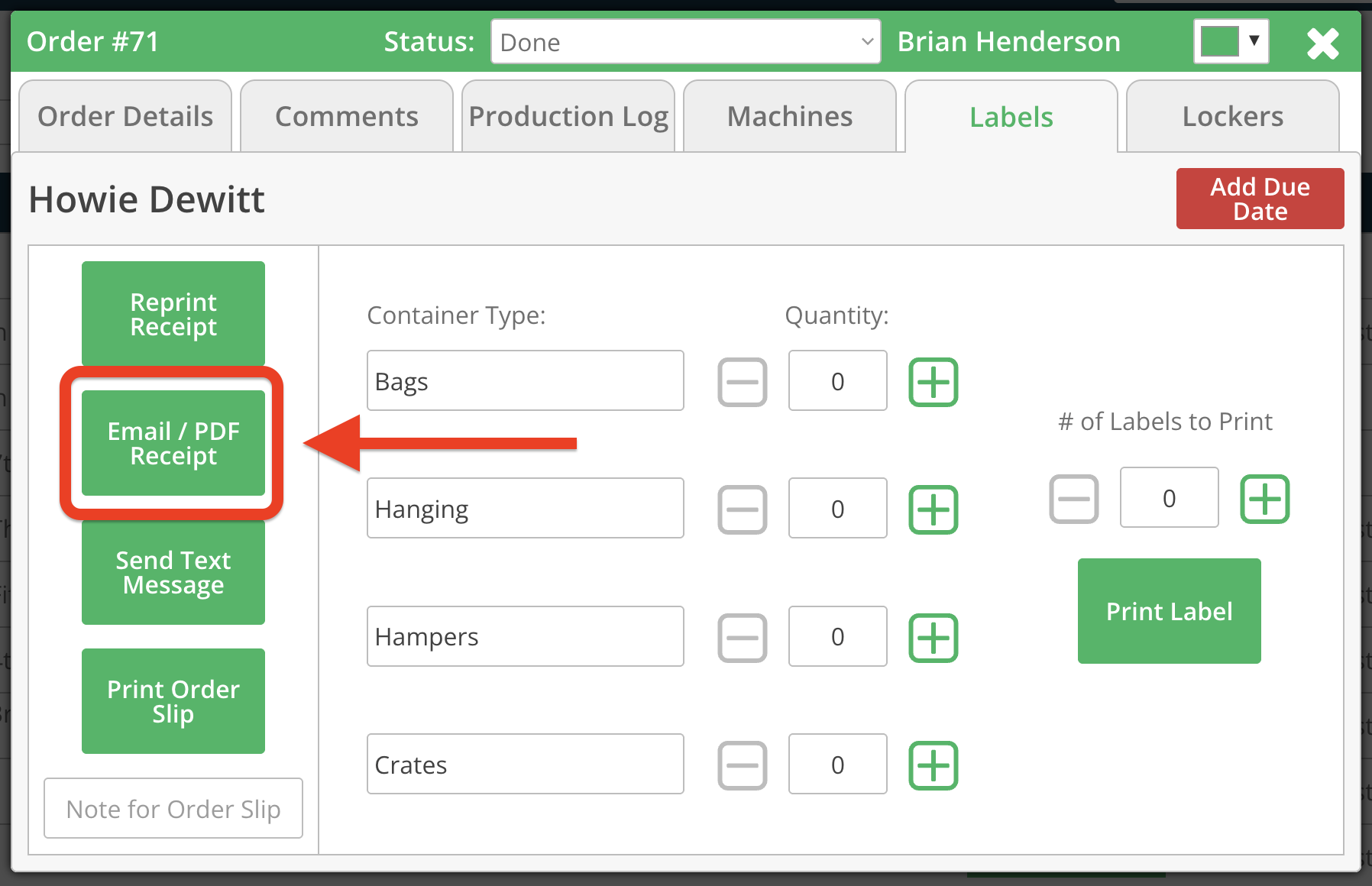
Option 3: Click the Email/PDF Receipt button on the Order Details popup's Labels tab.
Option 4: Click an order number on the Order List report.
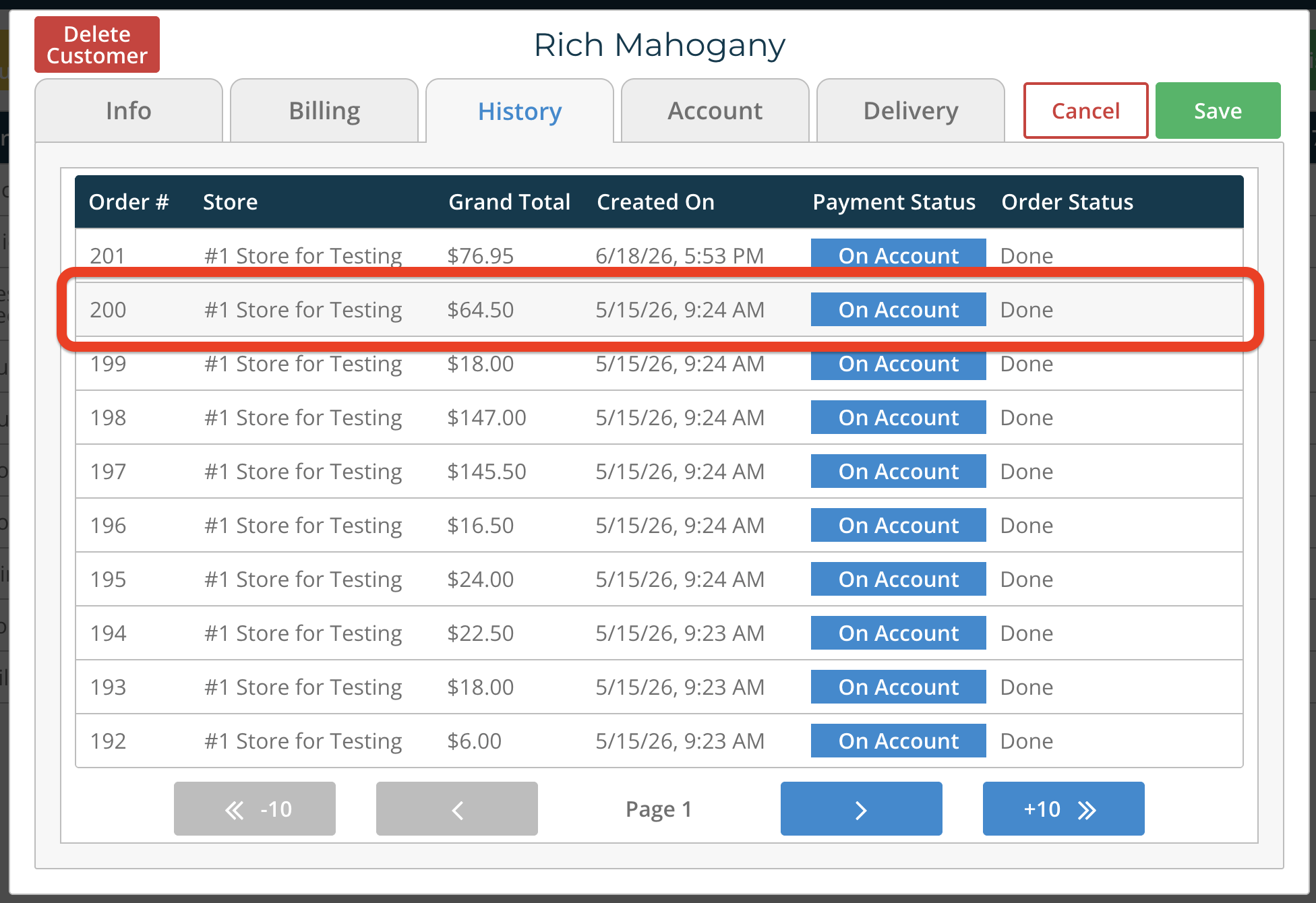
Option 5: Click an order in the Customer Profile popup's History tab.
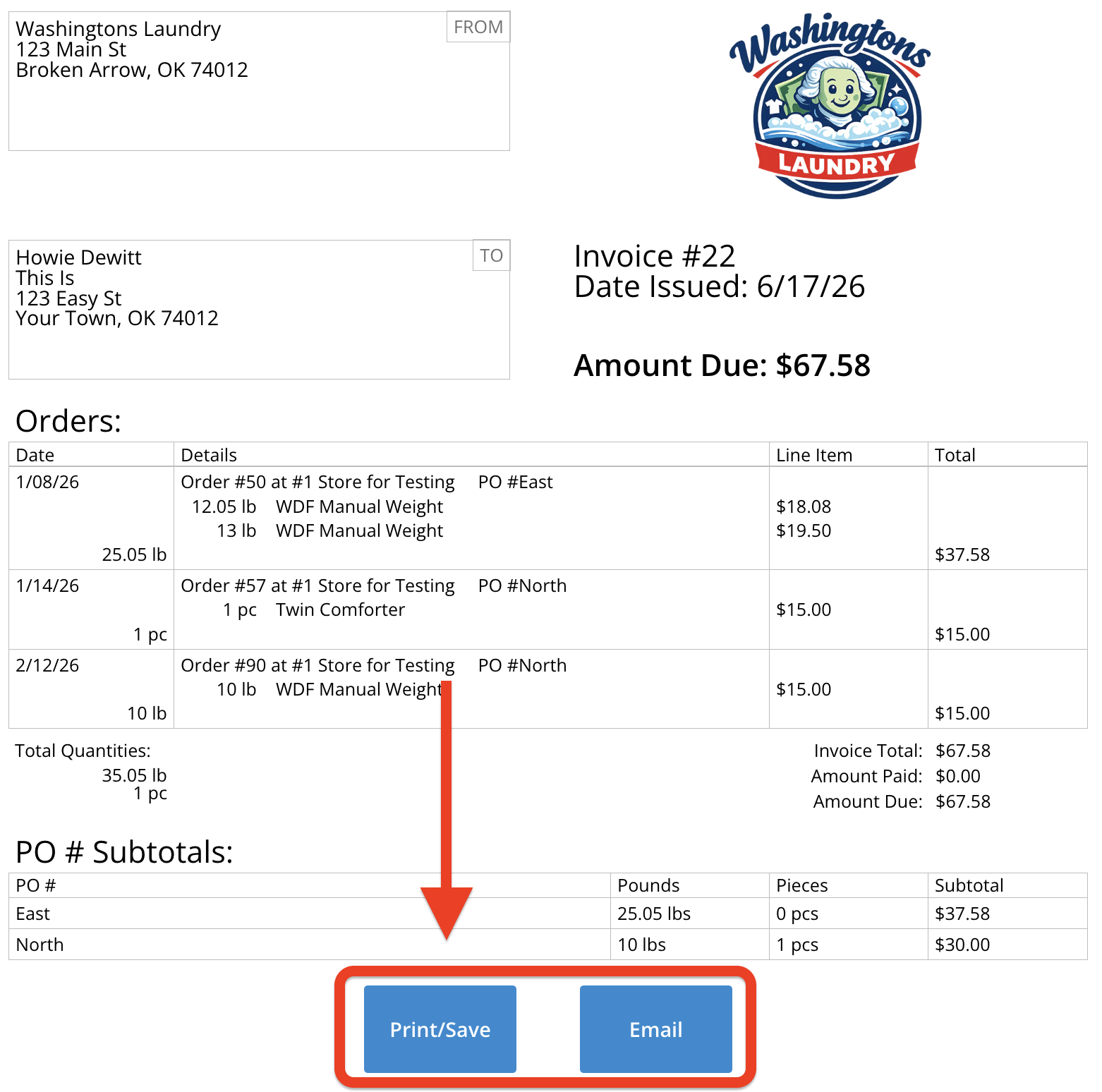
Print/Save Invoice or Receipt PDF
Click the Print/Save button at the bottom of an invoice or full size receipt.
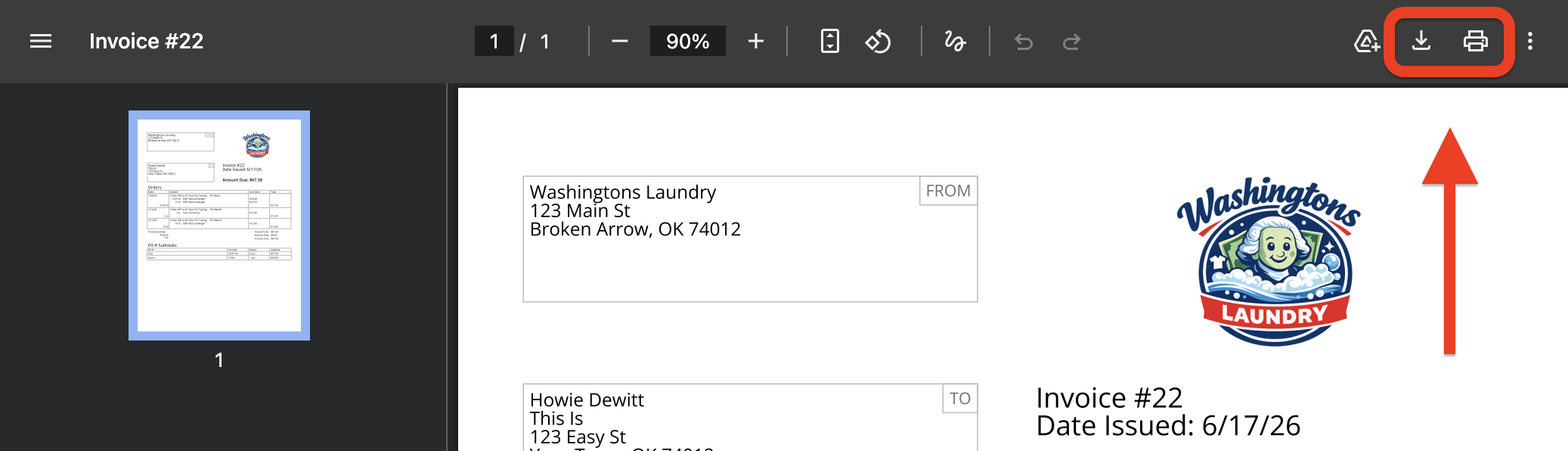
A PDF will be created for you to print or download.
Email Receipt
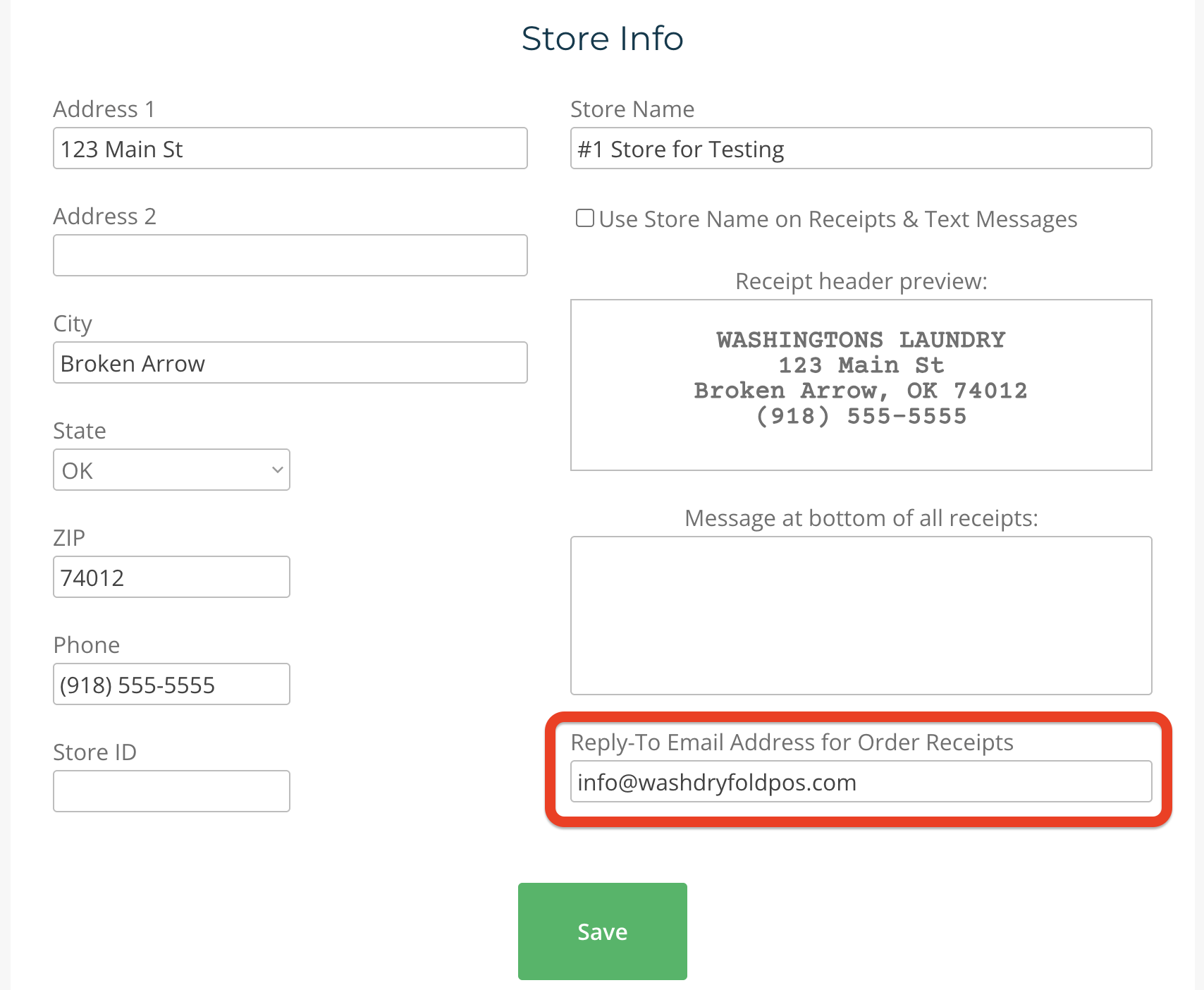
To enable receipt emailing, you must first set a Reply-To Email Address for Order Receipts on the Store Settings page's Store Info tab.
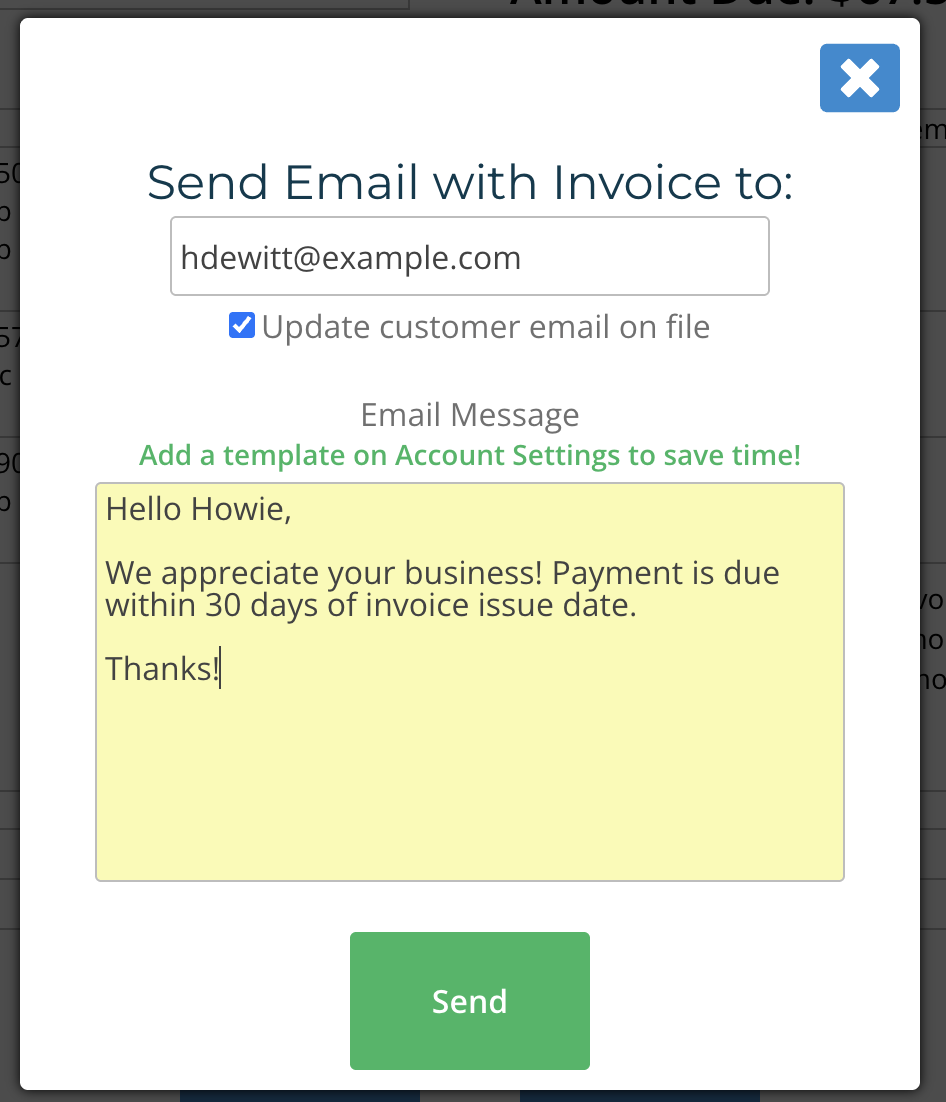
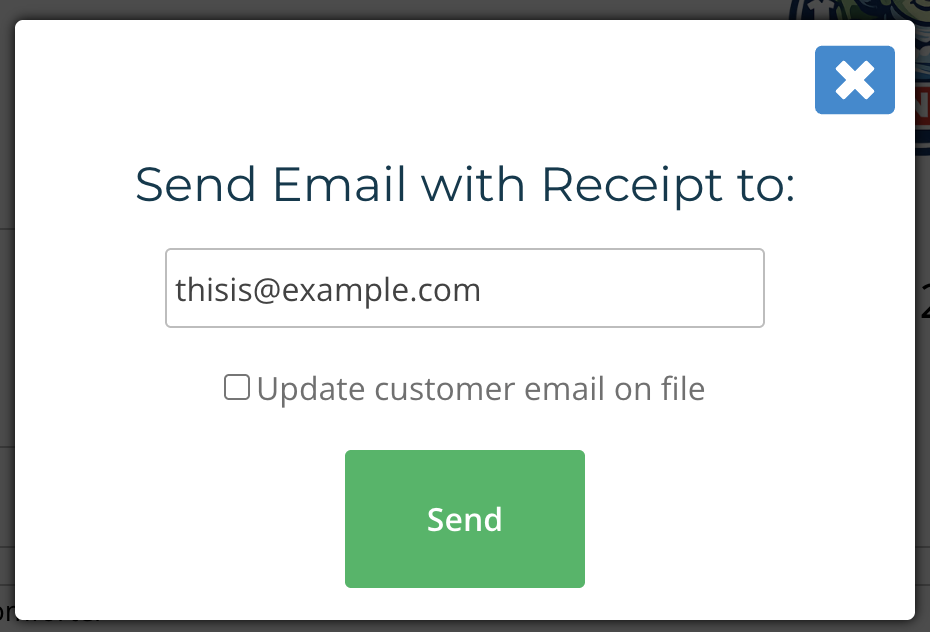
Click the Email button on the full size receipt page. A popup with the customer’s email address will appear. If you select Update customer email on file, the customer’s email will be updated with the address entered in the popup when you click Send.
Email Invoice
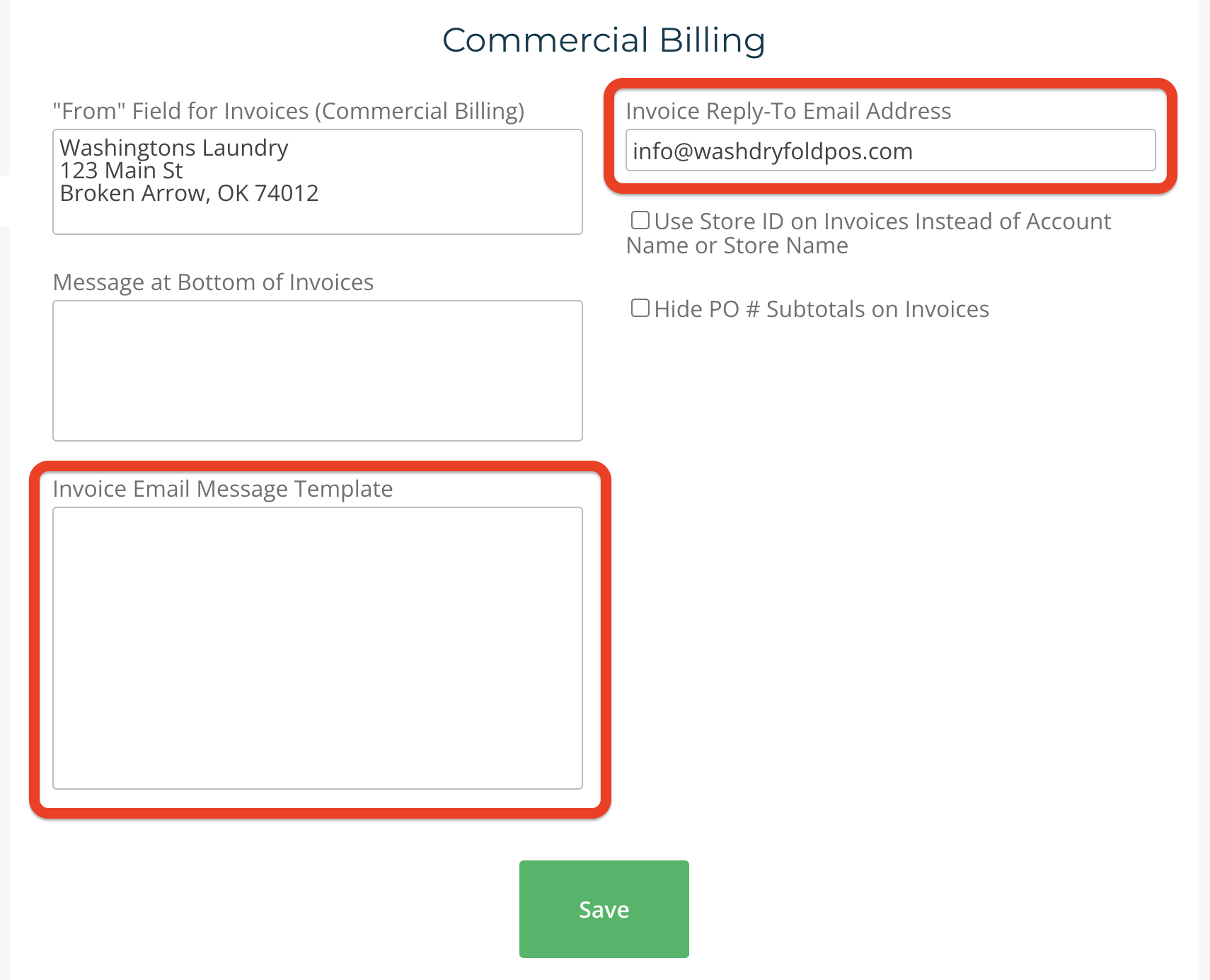
An Invoice Reply-To Email Address must first be set on the Account Settings page's Commercial Billing tab to enable invoice emailing. You can also add an Invoice Email Message Template here. Please note that this is separate from the reply-to email address for order receipts.
Like the full size receipt, you can enter another customer email address if needed. You may also edit the Email Message field (pre-filled with the template) before clicking Send.